This walkthrough follows the GoMyid Server by DeskGate customer Release installer described in the installation guide dated October 6, 2026. Screenshots show the real wizard in non-installing preview mode; they do not document a completed live installation.
Before you begin
Prepare a 64-bit Windows computer, authorized administrator access, your assigned license GUID, a static IPv4 address, SQL credentials and an available web port. For an upgrade, back up the installation and database first.
Use the customer GoMyidSetup.exe. If the local GOMYID SQL instance is absent, place the separately supplied SQLEXPR_x64_ENU-2022.exe beside the setup executable. The customer Release workflow reuses an existing GOMYID instance.
Run GoMyidSetup.exe, approve the authorized Windows elevation prompt and select English if necessary. The steps are Network, License, SQL & database, Web interface, Installation and Complete.
1. Confirm the static IPv4 address
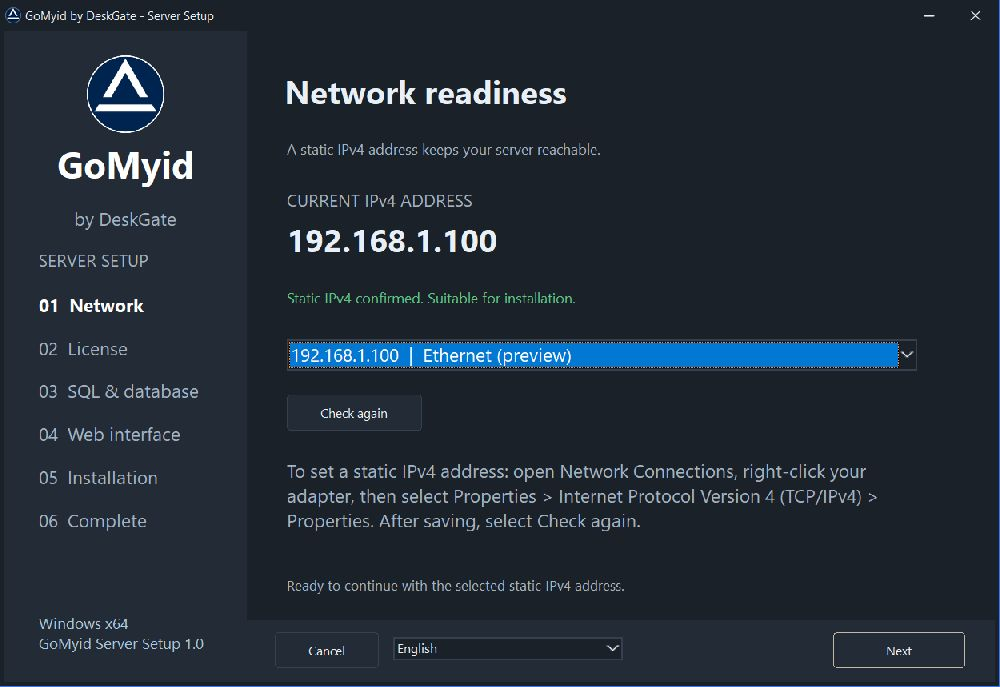 Actual Release wizard in non-installing preview mode. Example values and status messages are illustrative. Open the image to view its original size.
Select the adapter and IPv4 address the server will use. Continue when setup confirms the address is static and suitable. The screenshot’s address is an example.
If the address is not static, use Network Connections, then open the adapter’s Properties → Internet Protocol Version 4 (TCP/IPv4) → Properties. Apply the address, subnet, gateway and DNS assigned by your network administrator. Return to setup, click Check again, select the verified address and click Next.
2. Enter your license GUID
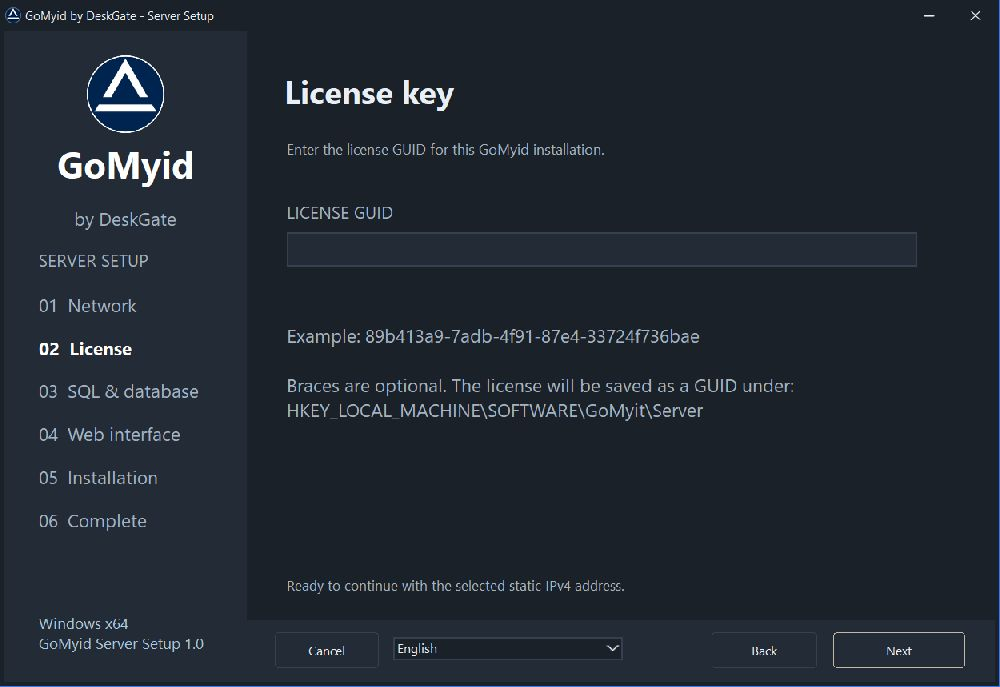 Actual Release wizard in non-installing preview mode. Example values and status messages are illustrative. Open the image to view its original size.
Enter the license assigned to this installation. Curly braces are optional. Review an existing saved license before continuing. Next validates the GUID format; it is not an online activation check.
The installer saves the license under HKEY_LOCAL_MACHINE\SOFTWARE\GoMyit\Server. Uninstall retains these settings; do not delete them merely to reinstall.
3. Configure SQL and test the database
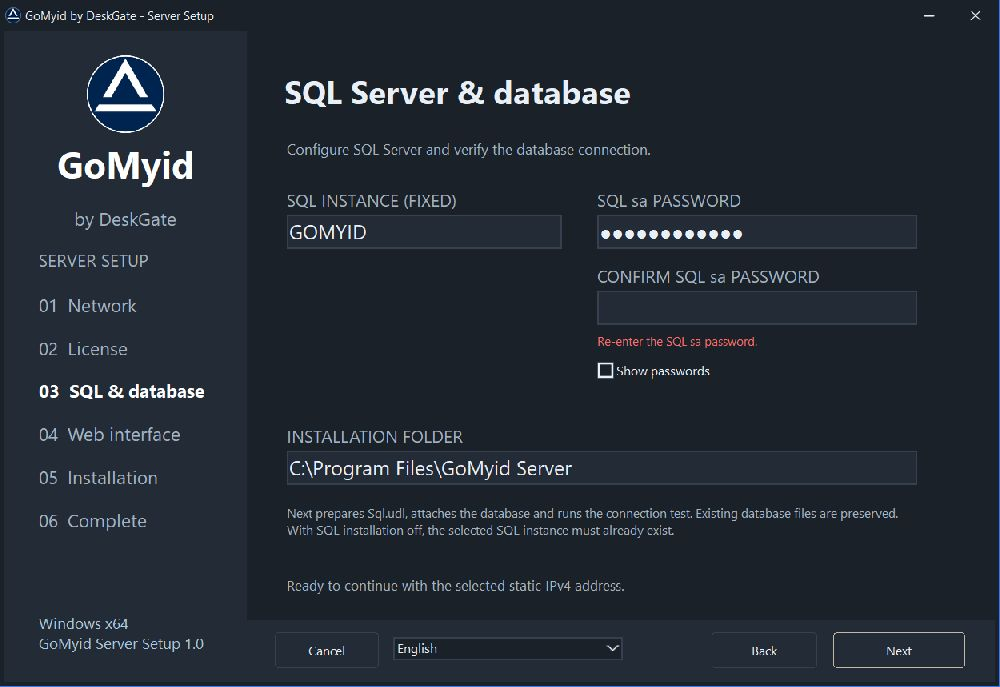 Actual Release wizard in non-installing preview mode. Example values and status messages are illustrative. Open the image to view its original size.
The Release instance name is fixed to GOMYID. For an existing instance, enter its current sa password: setup reuses SQL without reinstalling it or resetting the password. For a new instance, provide the SQL Express installer beside setup and enter the password to use.
Enter the same password in the confirmation field. Both entries must be nonempty and exactly match, including case. Review the installation folder and click Next.
Setup prepares Sql.udl, attaches the supplied database when necessary and tests the saved connection. An already attached GoMyid database and existing database files are reused. Continue only after DATABASE: TEST COMPLETE. See the SQL setup guide for failure checks.
4. Choose web access and ports
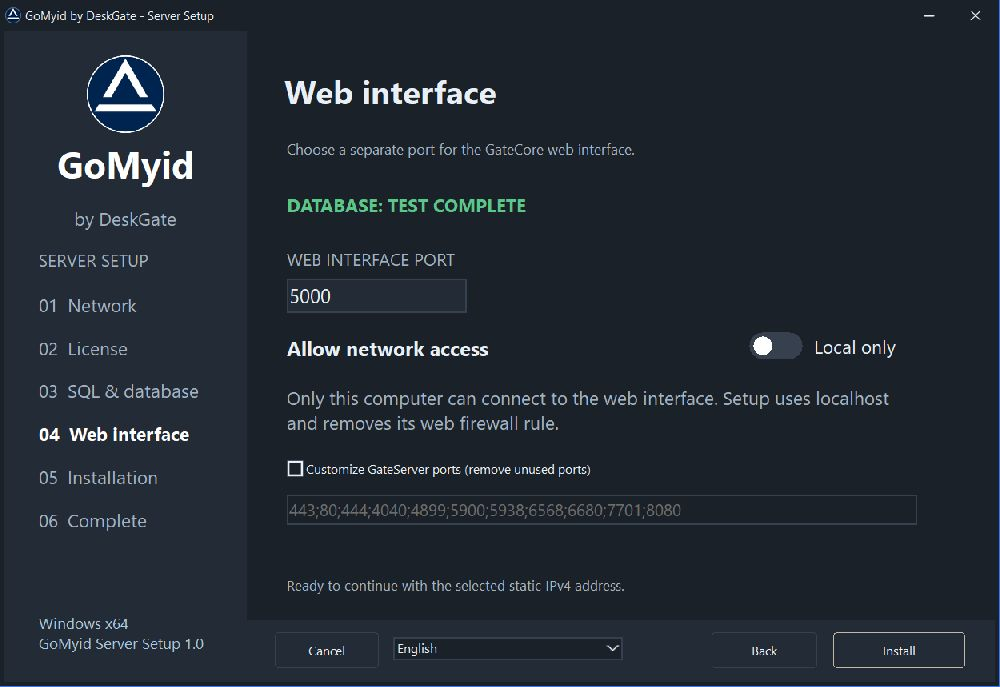 Actual Release wizard in non-installing preview mode. Example values and status messages are illustrative. Open the image to view its original size.
The web interface defaults to port 5000. Choose an available port outside the selected GateServer port list. For example, port 5020 gives http://localhost:5020/ on the server.
With Allow network access off, access is local to the server. With it on, GateCore listens on all IPv4 interfaces and setup adds an inbound TCP rule for the selected port. Authorized network clients use http://SERVER-IP:PORT/; GateCore’s own access policy still applies. Network mode does not by itself configure public DNS or HTTPS.
Customize GateServer ports lets you remove unused default ports. Keep at least one; new ports and duplicates are not accepted. Clearing the option restores defaults. Click Install. Resolve any occupied-port or conflicting-port error before retrying.
5. Wait for installation and verification
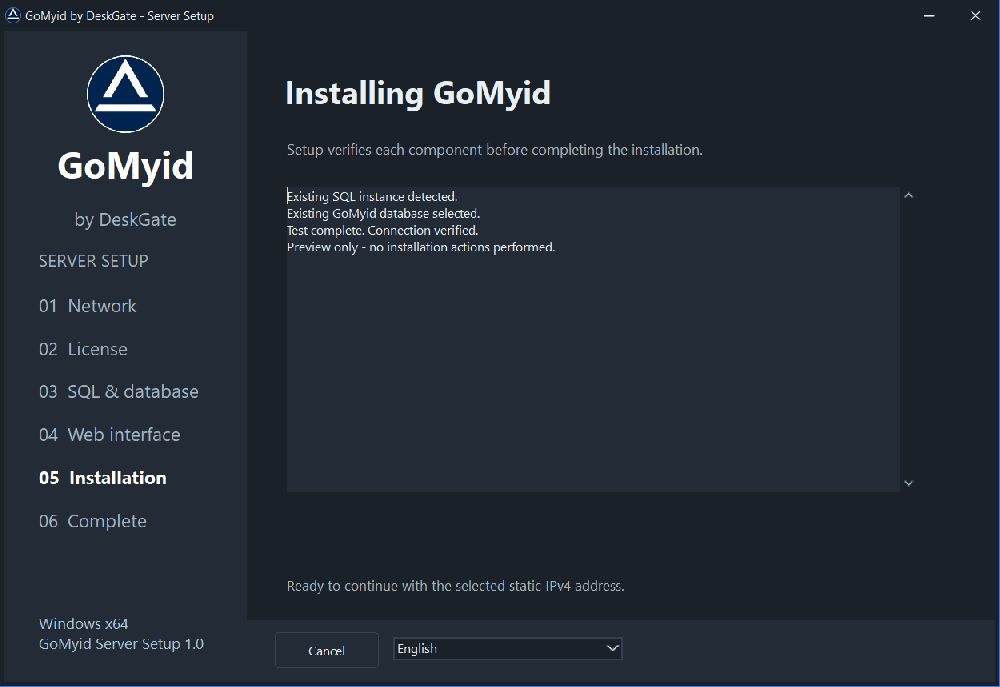 Actual Release wizard in non-installing preview mode. Example values and status messages are illustrative. Open the image to view its original size.
Setup installs the application files, saves settings, registers GoMyidServer and GoMyidCore, configures firewall rules and starts the services. Both services use automatic startup, depend on the selected SQL service and have restart recovery.
Setup checks the login page and registration/database page after startup. Both HTTP checks share a 15-second budget; service startup has a separate limit of up to 75 seconds per service. SQL installation can take longer. A login-page response alone is not sufficient: the database check must pass as well. Record an error before retrying.
6. Save the report and open the interface
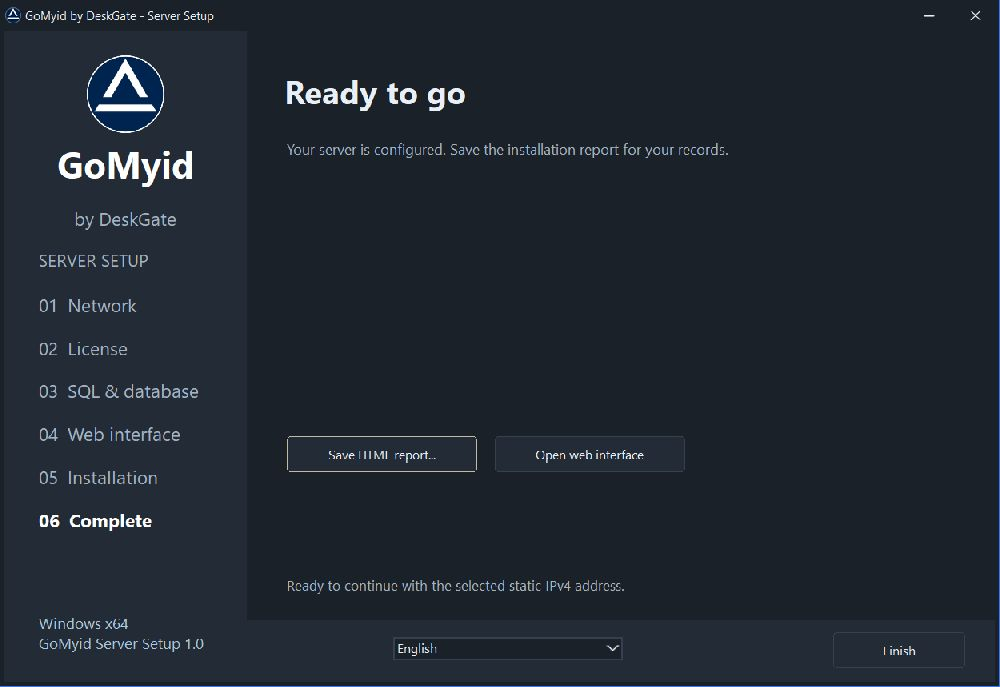 Actual Release wizard in non-installing preview mode. Example values and status messages are illustrative. Open the image to view its original size.
Successful installation writes InstallationReport.txt and InstallationReport.html in the installation folder and offers Save As for an additional HTML copy. Use Save HTML report... to save another copy.
Keep installation reports private: they include the configured IP, ports, SQL instance, user and actual SQL password. Store them where only authorized administrators can read them. Do not upload an unredacted report to a public ticket or website.
Click Open web interface and verify the configured port. If network access is enabled, test from another authorized computer using the server’s static IPv4 address. Click Finish.
Upgrade and uninstall behavior
Before an upgrade, back up and rerun setup with the same installation folder. Setup replaces its owned services and managed files while preserving database files, App_Data and customer settings. A failed installation has no full automatic rollback.
To uninstall, use GoMyid Server by DeskGate in Windows Installed Apps or Uninstall.exe in the installation folder. SQL Server, database files, GoMyit registry settings and firewall rules remain. Review retained rules and data separately through your administration process.
For an overview of the platform you are deploying and its feature categories, explore Self-Hosted Employee Monitoring Software.