Prepare a manual report first
Confirm that the underlying report produces the expected result before scheduling it. Scheduled Reports supports Activity Summary, Work Analysis, Management Summary and Support Summary. Configure the organization’s SMTP settings and review recipients before enabling automatic delivery.
Create a schedule
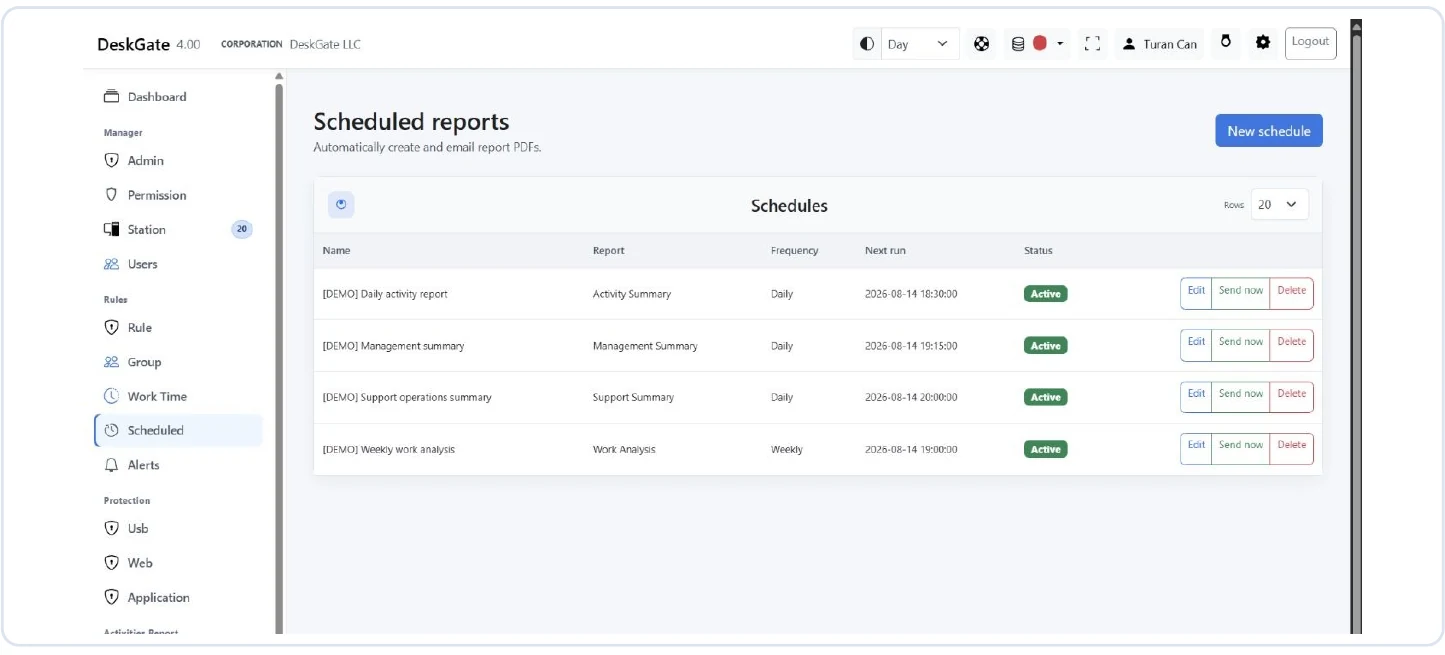 Actual Scheduled Reports list. Open for original size. Example records are demonstration data.
- Open Scheduled Reports and select New schedule.
- Enter a recognizable name and select Report.
- Select Summary PDF, Detailed PDF or both, as required.
- Choose All users, Selected group or Selected users. Review the resulting scope.
- Select Daily, Weekly or Monthly. Set the relevant weekday or day of month, Send time and Report period (days).
- Leave Active unchecked while reviewing the definition. Select Save schedule.
Check a complete definition
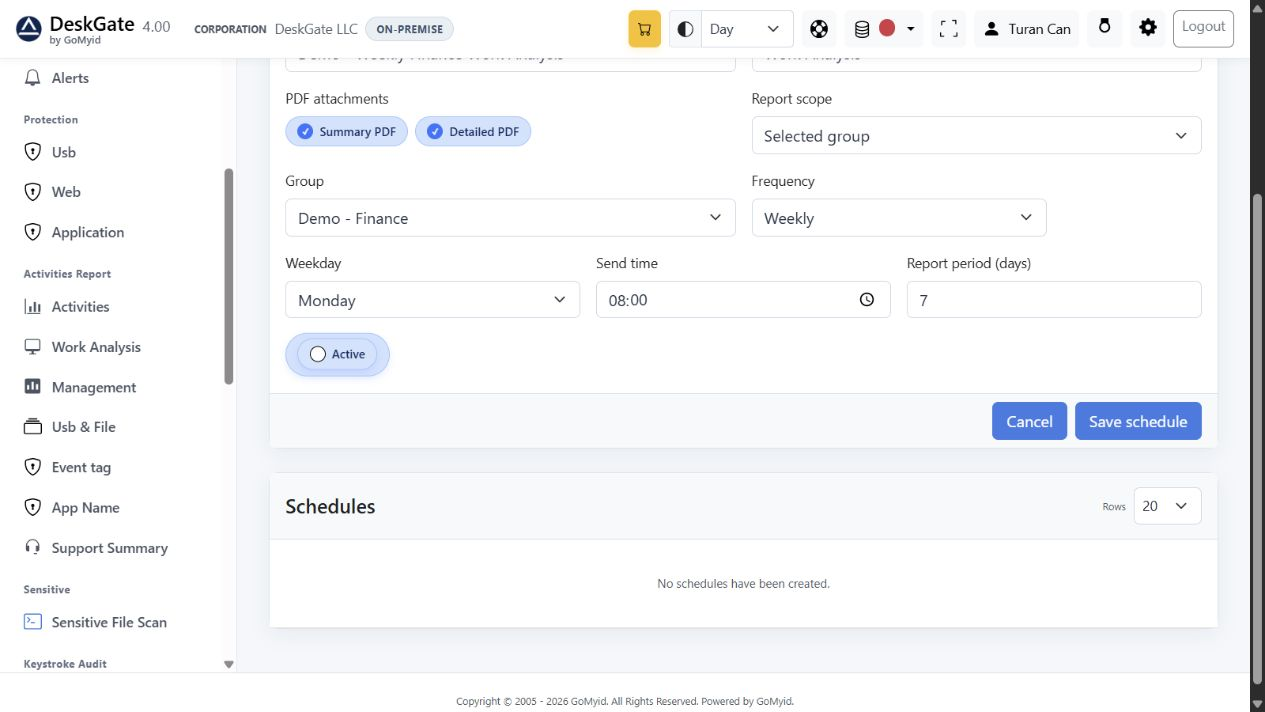 Actual schedule editor showing scope, timing and PDF options. Open for original size. Example records are demonstration data.
For example, a weekly group review could use Work Analysis, a selected group, Monday at 08:00 and a seven-day report period. This is an illustrative configuration, not a recommendation to send your organization’s records to any particular recipient. Check the application/server time setting and the displayed Next run.
Verify delivery settings
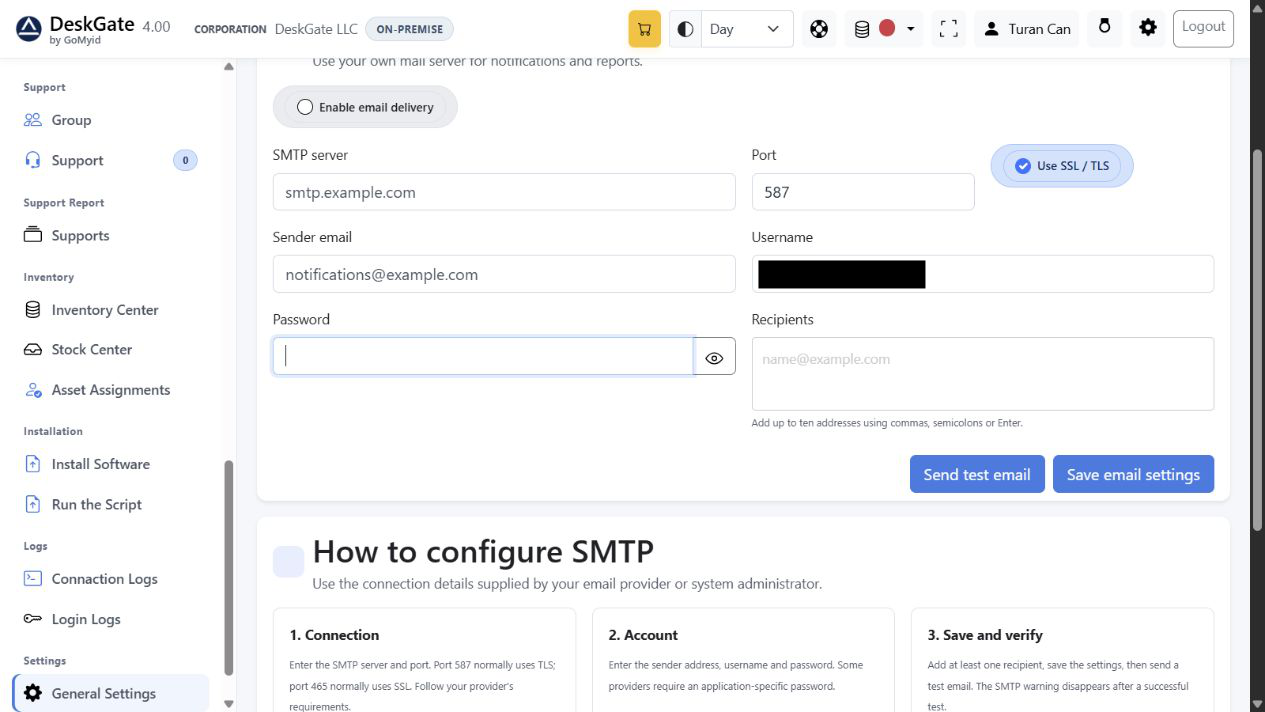 Actual General Settings SMTP screen with example values and no visible password. Open for original size. Example records are demonstration data.
In General Settings → SMTP / Email, review the approved mail server, port, security, sender and recipients. Save the settings and use Send test email only when you intend to send a message. Credentials and recipients must match your own provider and policy.
Back in Scheduled Reports, Send now sends immediately; it is not a preview. Use it only after checking scope and recipients. Confirm receipt and inspect both PDF attachments before activating recurring delivery.
Maintain and troubleshoot
Check Active/Passive status and Next run after saving. If delivery is missing, distinguish report generation errors from SMTP failures, recipient filtering and spam handling. If the PDF is empty, test the same scope manually and check collection coverage. Review recipient and group changes periodically.