1. Record the symptom
Capture the exact message, time and affected workflow.
2. Review the evidence
Keep relevant details and remove passwords and unrelated records.
3. Contact support
Share a concise summary through the official support channel.
Start with the failed workflow
Describe what you expected and what actually happened. Record the exact error text and the time, including the time zone. Say whether the problem affects one station, one group or the whole deployment, and whether it began after an update or configuration change.
Choose the matching guide first: SQL database test, server port conflict, missing device, empty activity report or missing report email. Record the checks you completed and their results.
Record the environment and versions
- Deployment: your own server or the cloud workspace, and the affected component.
- Version: copy the version shown by the affected application. For an installed Windows executable, its Properties → Details may provide a file or product version. Record server and client versions separately when both are involved; write “not available” if a version is not exposed.
- Operating system: record the Windows version on the affected server or station. For a browser issue, include the browser name and version.
- Service state: on your own server, inspect the relevant service in Windows Services and record its name and current status. For the Release server setup, the application services are GoMyidServer and GoMyidCore. Observing a stopped service does not establish the cause.
- Scope: use consistent aliases such as SERVER-A and STATION-01 for private device names. Include only identifiers support actually needs through an approved private channel.
Gather evidence before retrying a failed operation. Do not reset passwords, reinstall SQL, disable protection or repeatedly restart services merely to prepare a support request.
Capture the relevant screen
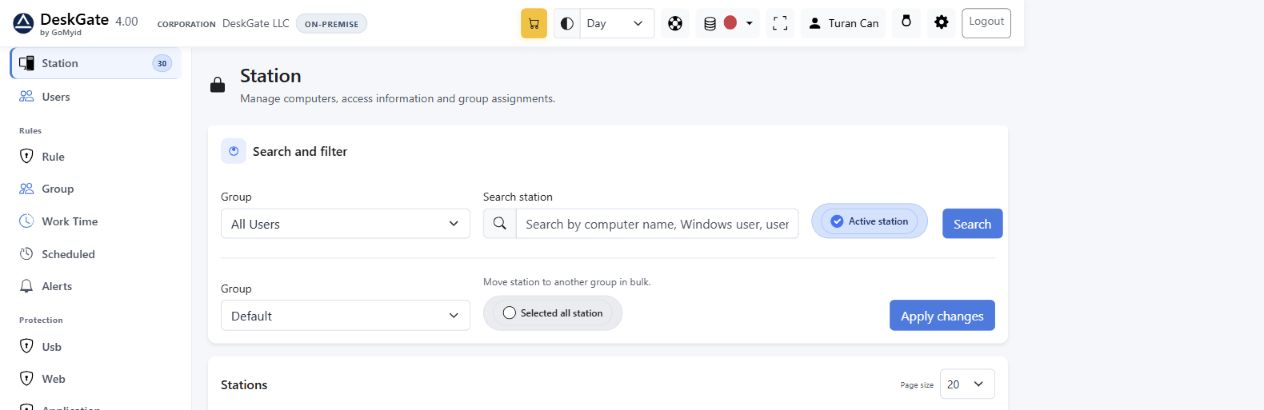 Actual application interface with demonstration data. Use the affected filters and status as context; review your own screenshot before sharing. Open this example at its original size.
For a missing device, include the selected group and filters. For an empty report, record the report name, date range and selected station or group. For scheduled email, record the schedule, the displayed status and any exact error. Distinguish an SMTP test from a scheduled delivery. “Send now” or “Send test email” can send real messages, so do not use them only to create a screenshot.
Capture enough of the interface to identify the failed step. Hide passwords, license keys, tokens, connection strings, recipient addresses and unrelated employee activity. Keep the error code and relevant timing readable. Reopen the final image to confirm the sensitive text is removed, rather than merely covered by an editable overlay.
Use the relevant log or error excerpt
If an error dialog or installer identifies a log or summary file, use that exact path. There is no single log-folder location assumed by this guide. If no location is given, record the error and ask support which component log is needed before collecting entire folders.
On a Windows server, existing Application or System events around the failure time may provide additional context. Record the event source, event ID, timestamp and relevant message if present. An event near the same time is a clue, not proof of the cause.
Work from a copy and share only the relevant time window after reviewing it. Do not upload a whole database, an unreviewed installation report, Sql.udl or configuration file. Connection files and the installation report can contain actual credentials. If additional evidence is required, agree its scope and transfer method with support first.
Copy this support summary
Replace the example placeholders in your own message. This page does not collect or submit information.
- Summary
- [Workflow] fails with [exact sanitized error].
- Time and time zone
- [Date, time, UTC offset; first occurrence and most recent occurrence]
- Environment
- [Deployment, affected component, server/client versions, Windows/browser version]
- Affected scope
- [One device, group or all; consistent device aliases]
- Steps and expected result
- [Actions taken] → [expected result] → [actual result]
- Recent changes
- [Update or configuration change, or none known]
- Checks already completed
- [Guide used, check, observed outcome]
- Evidence
- [Reviewed screenshot or short error excerpt; no passwords or unrelated records]