Separate the storage you manage
This guide describes the settings available in the inspected DeskGate on-premise application. Event Settings are specific to that deployment mode. Cloud customers should confirm the service's retention and capacity arrangements instead of applying server filesystem steps.
Database and reports
Locate the actual database and log volumes with the database administrator. Recording-file retention is not a policy for every database table.
Recording files
Review Record Path and the separate screen-recording and remote-connection age controls in self-hosted Event Settings.
Backups and exports
Manage recovery copies and downloaded reports separately. Deleting a source recording does not remove every exported or backed-up copy.
Review General Settings
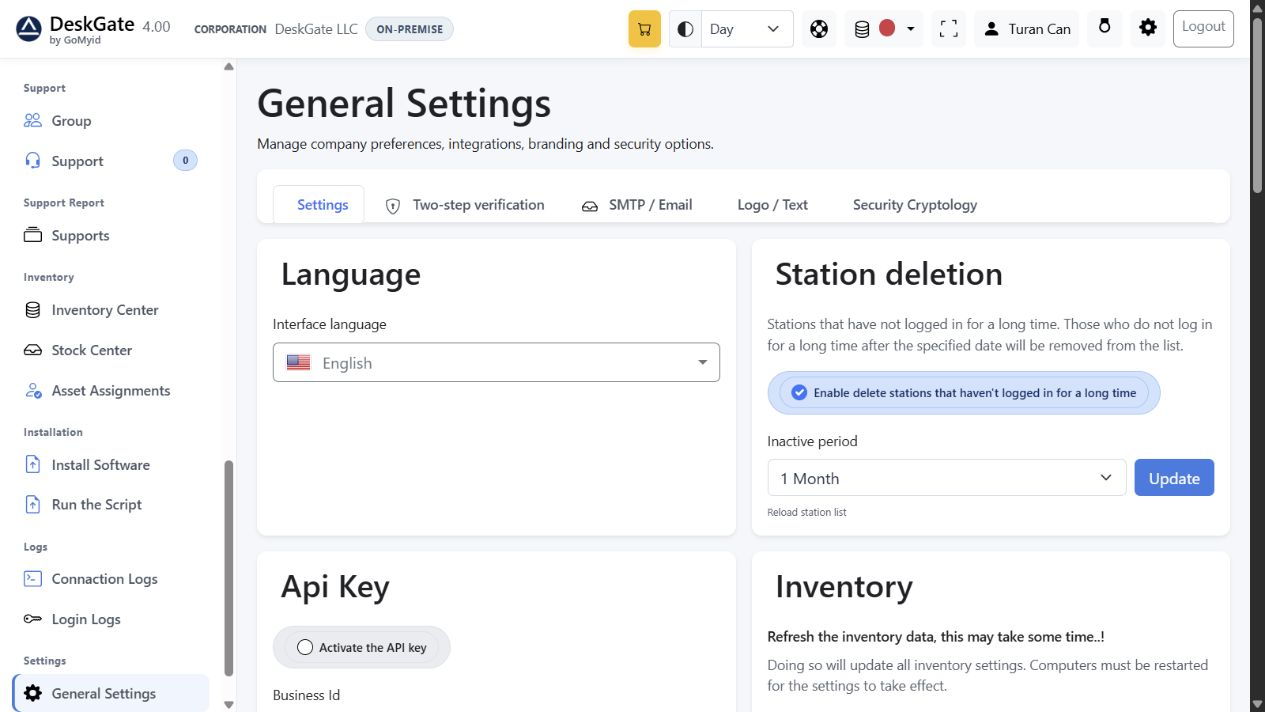 Actual interface with demonstration settings. This screenshot shows Station deletion, not the recording-retention controls described below. Its selected month is an example, not a recommended policy.
Station deletion removes long-inactive stations from the list according to its own setting. Do not treat that control as proof that every associated report, recording, backup or export has been erased.
Recording location and capture settings
In the on-premise General Settings page, review Event Settings. Record Path identifies the configured recording location. Confirm the actual host and volume before planning capacity; do not assume the browser computer stores those files. The optional remote event target requires a licensed GoMyid server on the destination computer.
- Record Quality: higher quality improves clarity and increases storage use.
- Record Jump Interval: a lower interval captures more frames and increases file size.
- Record Path: changing the setting is not evidence that historical files have moved. Plan any migration with the administrator and verify access before resuming collection.
Choose capture settings for the required evidence quality and approved scope. Measure a representative pilot rather than assuming a fixed number of gigabytes per device.
Two separate age-based controls
Delete screen recordings older than
Choose an available period from 1 to 12 months and review its separate Enable this feature checkbox.
Delete remote connections older than
Review this period and enable checkbox separately. Do not infer a matching policy merely because screen-recording deletion is enabled.
The unselected value does not enable age-based deletion when saved. These controls are not a universal retention setting for all activity reports, audit events, inventory or SQL logs. Confirm the policy and supported behavior for each data category separately.
Before enabling or shortening a period, identify which existing recordings would fall outside it and preserve any approved evidence that must remain available. Automatic deletion is destructive. Save only an approved change, reopen the page to verify the stored values and confirm the resulting behavior with the administrator. Saving a setting alone is not proof that disk space has already been reclaimed.
Check capacity before the disk is full
- Identify the recording volume, database and transaction-log volumes, backup destination and report-export locations.
- Record used and free space at consistent intervals during representative activity. Note device count, capture settings and unusual peaks.
- Estimate remaining headroom from observed growth and allow for backups, maintenance and peak activity. Establish your own alert threshold and response owner.
- If capacity is low, first identify which data category is growing. Review failed maintenance, recording settings and backup accumulation with the responsible administrator.
- Use an approved capacity or retention plan. Do not manually delete database files, transaction logs or recording directories to make space. Do not assume shrinking a database is routine maintenance.
This checklist does not imply that DeskGate provides a disk-capacity alert. Use the monitoring tools already approved for your server. If cleanup does not behave as expected, record the configured period, service state, target volume and relevant error for support diagnosis.
Retention and backup serve different purposes
Retention determines how long a data category should remain available. Backup provides a recovery copy. Define access, storage location and expiry for backups and exported PDFs separately; a source-data policy does not automatically apply to those copies.
Before a material retention or storage change, follow the DeskGate Backup Guide and confirm the restore procedure. For the broader product context, read the DeskGate Security and Data Protection Guide.