This walkthrough follows the GoMyid Server by DeskGate customer Release installer described in the installation guide dated October 6, 2026. Screenshots show the real wizard in non-installing preview mode; they do not document a completed live installation.
Use the customer Release SQL workflow
The customer setup uses the local named instance GOMYID. It handles the required SQL installation when that instance is absent. A custom instance name and manual SQL-install checkbox belong to the Debug installer, not this Release walkthrough.
Have authorized setup access and the correct SQL password ready. This article explains the supplied workflow; it does not require manually running SQL setup first.
1. Decide whether SQL already exists
- Existing GOMYID instance: use its current sa password. Setup reuses the instance and does not reset that password.
- No GOMYID instance: place
SQLEXPR_x64_ENU-2022.exe in the same folder as GoMyidSetup.exe. Enter the sa password to use for the new instance.
The SQL Express executable is supplied separately. Another named instance is not a replacement for the Release installer’s fixed instance.
2. Complete SQL & database
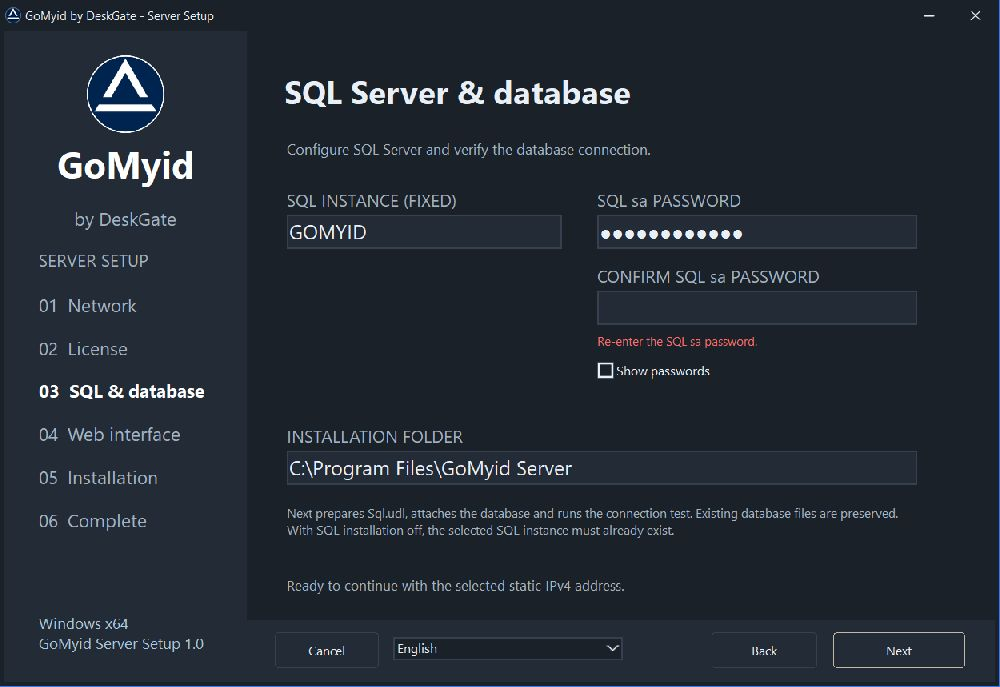 Actual Release wizard in non-installing preview mode. Example values and status messages are illustrative. Open the image to view its original size.
- Complete Network and License in the server setup walkthrough.
- Confirm the fixed GOMYID instance.
- Enter the SQL sa password and repeat it in Confirm SQL sa password.
- Check that both values are nonempty and exactly equal.
- Review the installation folder and click Next.
Next remains disabled while the passwords differ. Do not copy credentials from example configurations.
3. Require a successful database test
Setup prepares Sql.udl, attaches the supplied database if needed and tests the saved connection. It reuses an already attached GoMyid database and preserves existing database files. Continue only after DATABASE: TEST COMPLETE.
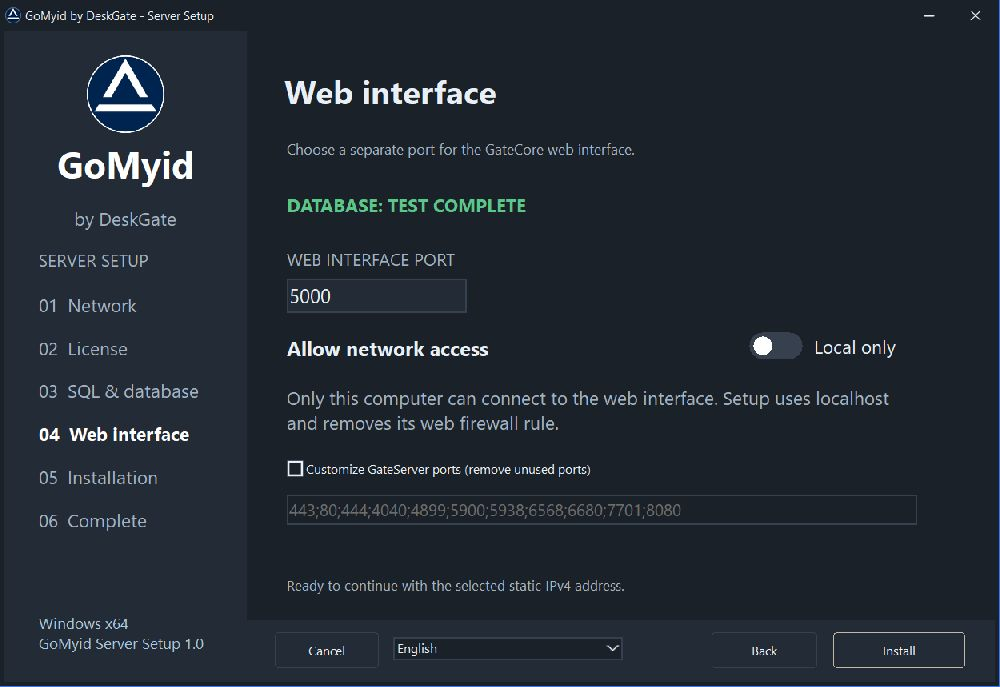 Actual Release wizard in non-installing preview mode. Example values and status messages are illustrative. Open the image to view its original size.
The image illustrates the expected status; it is not proof of an installation on your machine.
If the SQL step fails
- Next disabled: check that the password and confirmation match exactly.
- SQL Express installation error: verify the EXE is beside setup. Record the exit code and setup summary shown in the error dialog, then address the reported failed prerequisite or rule.
- Connection or Sql.udl error: confirm the selected instance is running and the entered sa credentials are correct. Record the exact connection error.
- Existing installation: do not delete or overwrite database files to bypass a failed test.
The documented installer requires sa for this workflow. Do not substitute a restricted login or change its configuration without verified product support. Keep connection files and generated installation reports private, because they can contain the actual password.
SQL network access is separate from web access
Enabling network access to GateCore does not require exposing SQL Server directly to every client. Use the intended application connection paths. If separate SQL administration access is needed, have the DBA configure it for approved sources.
For SQL concepts and detailed error investigation, consult Microsoft’s installation documentation and SQL firewall guidance. The customer installer sequence above remains the product-specific workflow.