DeskGate Help Center
DeskGate How to Monitor Employee Computer Activity
Learn how to monitor employee computer activity in DeskGate, from selecting users and dates to checking reports and exporting scoped results.
Learning how to monitor employee computer activity starts with a practical reporting question. You may need to check which applications were used during a known assignment, understand an unexpected gap in a daily report, or prepare a focused usage summary for a team manager. The task becomes much easier when you identify the relevant users, computers, and dates before opening a large collection of records. A small result that you can explain is more useful than an extensive export whose scope nobody remembers.
This guide follows a working sequence through DeskGate, from confirming the device and user to examining Work Analysis and checking an exported result. It also explains when Daily Activity or screen recordings can answer a different question. The objective is a repeatable method: another authorized reviewer should be able to select the same scope and understand how you reached your conclusion. Computer activity contributes evidence about recorded use; it does not independently establish attendance, work quality, or the value of an employee's contribution.
Prepare the review before opening a report
Write down the specific question in one sentence. For example, you might need to identify which business applications appear in a user's records during a particular week. Include the dates and the relevant team, and decide what information would answer the question. This prevents the investigation from expanding simply because another interesting chart is available. Keep the review within the purpose and access arrangements established by your organization.
Confirm that your account is authorized to inspect the selected people and records. Being responsible for a computer does not necessarily mean you should review every employee who has used it. Ask the appropriate administrator to resolve an access problem through the normal process instead of borrowing another person's account. Accountable access helps the organization understand who examined the information and why it was needed.
Have a known reference ready for the first check. This could be an application that the user confirms using during a stated interval or a device assignment recorded by the technical team. The reference does not need to describe every minute. It should establish enough context to recognize whether you selected the expected person and period. Resolve that basic question before making comparisons or producing a summary.
Confirm the station and the user relationship
Begin with the computer information when there is uncertainty about the source of a record. DeskGate's station list provides device and user context, including group membership and last-seen information. Compare the displayed computer and Windows user with the assignment information maintained by your organization. A familiar device name alone is insufficient when laptops have been replaced, renamed, or passed between employees.
Shared computers require particular care. Two people may work on the same physical machine at different times, while one person may use several machines. Identify the account associated with the activity rather than treating a hardware asset as a person. If a shared sign-in makes attribution unclear, record that limitation and resolve the account arrangement before using the information for an individual review.
Check whether the device was within the intended monitoring scope during the period you want to examine. A station visible now does not establish that all relevant activity was collected earlier. Group changes, connection interruptions, and configuration changes can affect the available records. Keep the device question separate from the reporting question so that a coverage problem does not become an unsupported claim about the user's behavior.
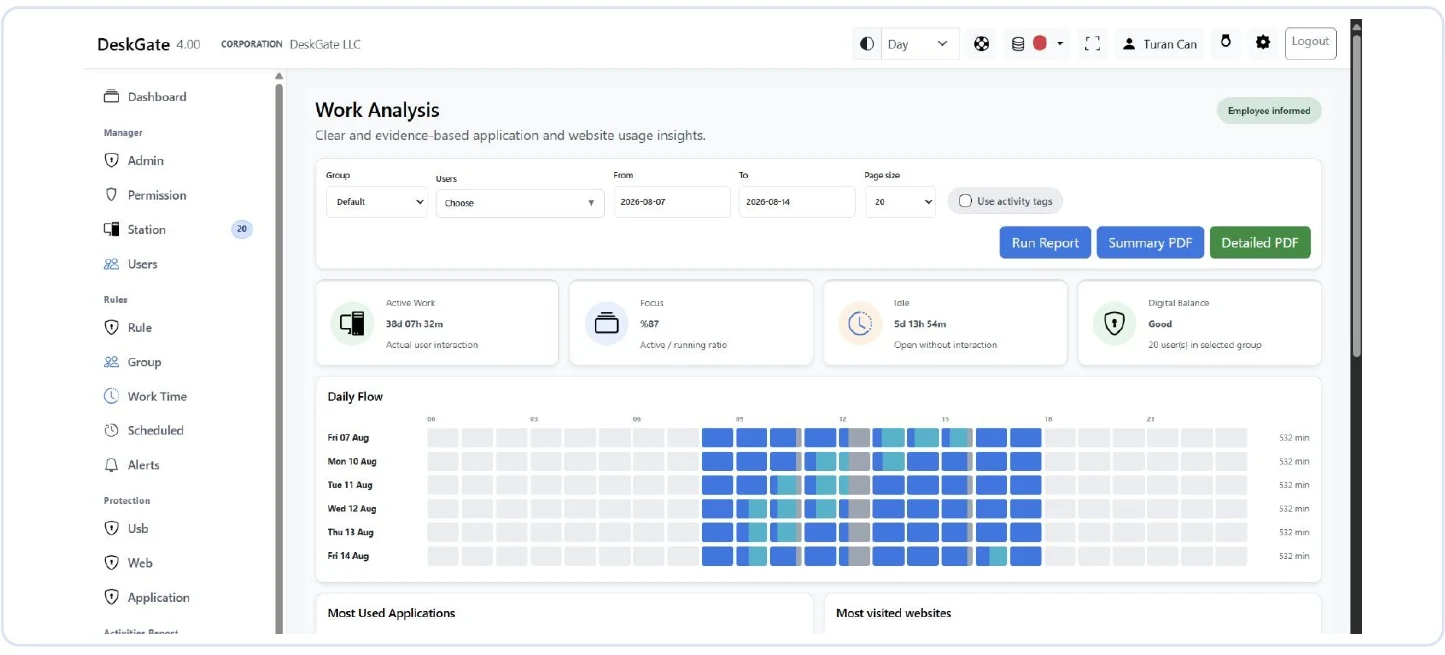
Choose Work Analysis for application and website use
Open Work Analysis when the question concerns recorded application and website usage. It brings those usage views together with active work, idle time, and related summaries. Start with the overview to confirm that you are in the correct report family, then use the detailed sections to investigate the particular application, website, or user that prompted the review.
Do not select a report only because its name sounds similar to the question. Daily Activity is useful for a different view of active and passive minutes, while historical screen recordings provide visual records that were previously collected. None of these views should be treated as an interchangeable substitute for the others. Match the report to the event you need to examine before comparing its totals with another source.
Keep the installed interface in view as you follow the procedure. Labels and available options can depend on the release and language selected for your environment. Use the actual control descriptions and permissions rather than assuming that a screenshot guarantees every option is enabled. If the expected page is unavailable, ask the administrator whether the issue concerns access, deployment configuration, or the installed version.
Set Group and Users deliberately
In Work Analysis, choose the relevant Group and then the intended Users. Check the selection before proceeding, especially when a review follows a transfer between teams. The current group name may be familiar while the membership differs from the period being investigated. Explain whether the review concerns the current team or a defined set of people who worked together during the selected dates.
For an initial verification, select one known user. A narrow result makes it easier to recognize an unexpected application, a mistaken identity, or an empty interval. Once that result is understood, expand the scope to the required group. Avoid starting with every available user and relying on memory to separate the relevant records afterward; the resulting export can contain information unrelated to the review.
Record the final selection outside the report if you need to reproduce the work later. Use the organization's approved review notes and include enough identity information to distinguish similar names without copying unnecessary personal details. When the scope changes during an investigation, state which result belongs to which selection. Otherwise, two correct exports can appear contradictory simply because they contain different people.
Select From and To and establish the time basis
Set the From and To fields for the period in your question. Prefer explicit dates to informal descriptions such as last week, which become ambiguous when the report is read later. Check how the installed interface presents the selected interval, including any time information or date boundaries. Do not assume that two report families use identical boundaries merely because you selected matching calendar dates.
When reviewing a team across locations, confirm the time basis used in the report and the reference records. An event near the end of a day can appear on a different date when two sources use different time interpretations. Establish this before declaring that a record is missing. A carefully expanded search around the relevant boundary can help identify whether the discrepancy concerns timing rather than collection.
Keep the first query short enough to inspect. A single day or a limited work period is often easier to validate than a long historical range. Broaden the interval only when the question requires it. This approach reduces the number of unrelated events you must interpret and makes it easier to distinguish a real change in use from a change in the number of days included.
Run the report and confirm the refreshed result
Choose the appropriate page size and select Run Report after setting the filters. Changing a field is not the same as confirming that the displayed results have refreshed. Check the resulting user scope and dates before reading the totals. This is particularly important when moving quickly between several employees because the previous result can remain familiar enough to escape notice.
Read the overview first and compare it with your known reference. Look for the expected user and a recognizable application or period of use. If the result does not match, return to the filters rather than immediately searching through every detail. Many apparent reporting problems begin with a selection that was not applied, an unexpected group, or a date range that excludes the relevant activity.
Use pagination when the result extends beyond the visible page. A page-size setting changes what is displayed together; it should not be assumed to establish the complete scope of an export or summary. Read the controls associated with each view. Keep a distinction between the records currently visible, the full filtered result, and any limit that applies when generating a detailed document.
Read active work and idle time with their context
Active work and idle time describe the report's treatment of recorded computer interaction. Read the labels and definitions used by the installed version before using the figures in a calculation. A period with limited interaction may include a telephone call, a meeting, reading, or work away from the station. The report cannot supply the whole explanation merely by assigning minutes to a technical category.
Compare the figures with the work question you prepared. If you are investigating application adoption, the useful finding may be that the expected application appears during the selected period. A high overall activity total does not establish adoption of the correct process. Likewise, a low total does not identify the reason for a delay. Use the report to decide what needs clarification, then obtain that context through the appropriate team conversation.
Avoid creating a performance score by combining unrelated totals without a defined method. Application duration, website activity, and active minutes can represent different measurements. Adding or dividing them without understanding their basis can produce a precise-looking number with little practical meaning. Preserve the original labels in your notes so that readers can see what was actually measured.
Examine applications and websites as separate views
Use the application section to understand recorded use of programs, then inspect the website section when the question involves browser-based work. A browser can support several business services, so its application total is not a complete description of the activity inside it. Conversely, a website record does not necessarily describe every action performed in the associated business application.
Check classifications before interpreting a category summary. Undefined activity should remain unresolved until there is enough context to classify it appropriately; it is not automatically personal or unproductive use. The same service can support different tasks in different roles. Ask the responsible process owner to explain the intended use instead of relying only on the appearance of a domain or application name.
When a total attracts attention, narrow the question to the user and period that produced it. Review the associated details rather than expanding immediately into unrelated records. State whether your conclusion concerns an observed usage pattern, a confirmed business explanation, or a matter that still needs investigation. Keeping those statements separate makes the report more accurate and easier to act on.
Use Daily Activity when the question concerns daily minutes
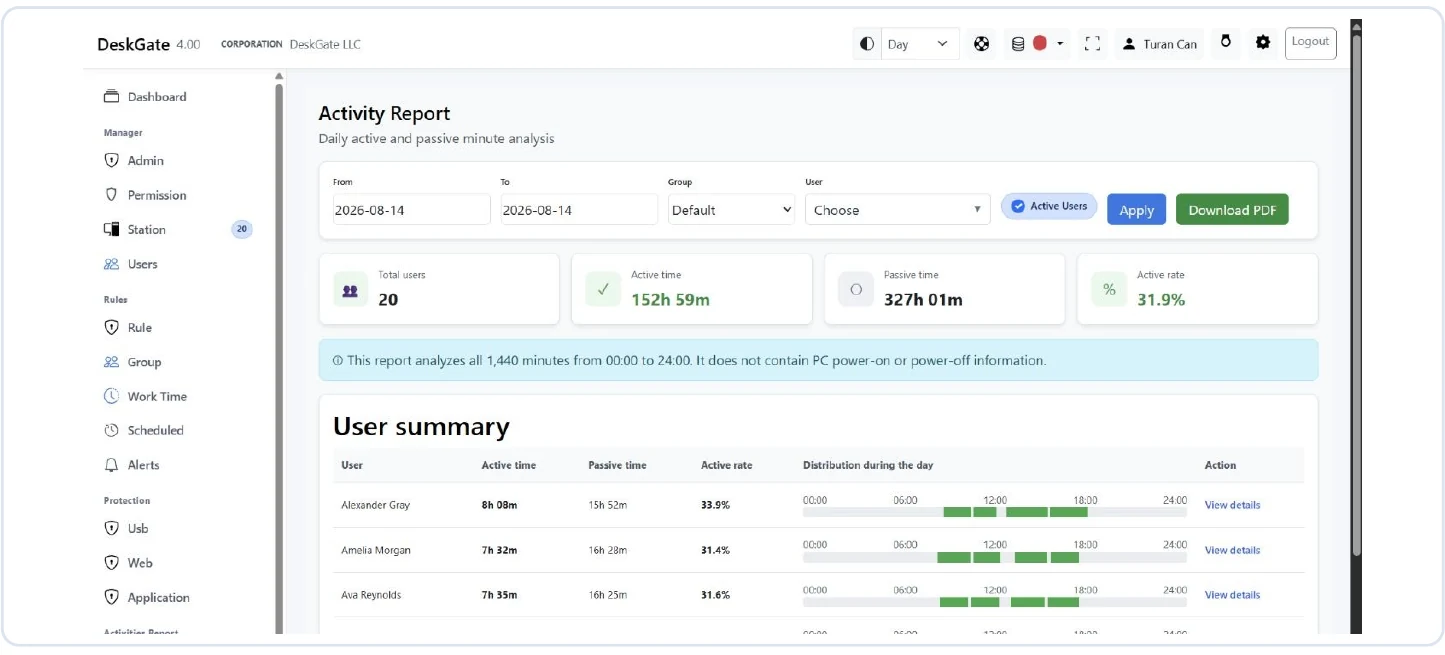
Open Daily Activity when you need its daily view of active and passive time. The report considers the full 1,440 minutes from 00:00 to 24:00. It does not contain PC power-on or power-off information. That distinction is essential: a passive interval in this report is not equivalent to a period when the employee was absent, nor does it establish when the computer was switched off.
Set From, To, Group, and User in the Activities view, review the Active users checkbox, choose the page size, and apply the filters. The checkbox controls the users included in the result; it is not the active-minute measure. Confirm the selected user and period before comparing this report with Work Analysis or with information maintained outside DeskGate.
Read the daily values alongside collection coverage and the person's duties. If the report appears surprising, inspect a known day before summarizing a whole month. Keep the full-day basis visible in any explanation you prepare. An audience that assumes an eight-hour denominator could misunderstand the same figures even when you copied them accurately from the interface.
Inspect screen recordings only for a relevant visual question
Historical screen recordings may help when the review requires visual context from an already recorded interval. Select the appropriate group, user, and dates in the recording view and look for received records that match the question. A recording has to exist for the relevant period; opening the page now cannot recreate a screen session that was never collected.
Distinguish playback from live remote access. A stored recording concerns a past session, while a live connection concerns the current device state and a separate operational action. Choose the method that fits the question and the organization's access arrangements. Do not assume that permission to inspect usage summaries automatically provides an appropriate reason to open visual records or initiate a remote session.
Limit the review to the relevant interval and audience. Screens can contain customer information, correspondence, or unrelated material. Record the operational finding without unnecessarily copying the surrounding content into a report. If the expected video is unavailable, investigate collection settings, scope, dates, and access; do not replace the missing evidence with an assumption about what the screen must have shown.
Choose the right PDF and check its limits
After validating the on-screen result, choose Summary PDF or Detailed PDF in Work Analysis according to the audience and question. A manager may need a concise overview, while a technical reviewer may need selected underlying records. More detail is not automatically a better deliverable. Choose the smallest useful scope and keep the export within the access arrangements for the review.
Check the PDF record limit before generating a detailed export. A limit can mean that the document does not contain every event represented by the full filtered result. Do not describe a limited document as a complete historical record. If the question needs additional detail, narrow the query or adjust the permitted export settings while retaining a clear record of what each document contains.
Open the resulting PDF and verify the people, dates, totals, and at least one known record against the screen. Confirm that the document belongs to the final filter selection rather than an earlier query. Use an informative file name and the approved storage location. The export should remain understandable when separated from the browser session that produced it.
Diagnose an empty result in a consistent order
When no records appear, check the simplest scope questions first: selected group, selected users, date interval, and applied filters. In Daily Activity, also review whether the Active users selection excludes the expected record. Return to a known user and period when possible. This establishes whether the issue affects one selection or the report more broadly.
Next, ask the administrator to verify the station's connection, collection settings, relevant permissions, and the period for which data is available. A device visible in the console does not guarantee that every report contains historical data for it. Avoid changing several settings at once during troubleshooting, because that makes it difficult to identify which condition explained the result.
If support is needed, prepare a concise account of the selected page, filters, expected record, actual outcome, and time of the check. Include relevant version and device context through the approved support process. Remove unrelated employee details from screenshots or documents where practical. A focused description helps support reproduce the problem without receiving a broad export that adds little diagnostic value.
Finish with a reproducible finding and a next action
Write the conclusion in terms of what the records support. State the selected scope, the observation, and any unresolved limitation. If the next step is training, a technical check, or a conversation about the workflow, identify its owner. The value of monitoring comes from a decision that can be explained, not from accumulating a larger collection of reports.
Retain only the review material required by your organization's process and access rules. If a recurring report is appropriate, first verify the manual result and its intended recipients before moving to a recurring reporting arrangement. Recheck the scope when team membership, devices, or responsibilities change. A repeatable method still needs maintenance when the environment it describes changes.