DeskGate Help Center
DeskGate Employee Computer Monitoring Software
Build a reliable DeskGate computer monitoring scope with station records, user mapping, device inventory and clear operational ownership.
Employee computer monitoring software connects workplace activity with the devices on which that activity occurs. A useful deployment starts with a trustworthy device scope: which computers belong to the organization, which people use them, which groups manage them, and which period a report describes. Without that foundation, even a detailed activity report can answer the wrong question. A computer that was reassigned yesterday may still have records from its previous user, and a shared workstation may represent several different working arrangements.
DeskGate provides station information, inventory views, and usage reporting that can help teams establish this context. This guide focuses on the operational work behind reliable computer monitoring, from selecting a pilot fleet to handling replacements and investigating missing records. It explains how to use device information alongside the organization's own assignment and support records. The goal is a maintained view of company computers that makes technical support and activity review easier to interpret as the fleet changes.
Define the computers that belong in the deployment
Begin with a clear boundary for the fleet. Decide which organization-managed computers are included and which are outside the current project. Separate office workstations, assigned laptops, shared computers, and devices used only for occasional tasks. These categories may need different review expectations even when they use the same management platform. A workstation used every business day and a computer reserved for a monthly procedure should not be judged against an identical last-seen expectation.
Reconcile the proposed scope with the organization's existing asset information. The initial list should identify a responsible team and an understood use for each computer. Where ownership is uncertain, resolve that question before treating the device as part of a particular employee's working environment. Monitoring cannot repair an unclear assignment simply by collecting more activity. A named person responsible for the device record can help keep the relationship accurate after installation.
Record the reason for including each device category. Some computers may be important for application usage reporting, while others primarily need technical visibility or inventory review. This distinction guides the first acceptance checks and helps avoid collecting unrelated information by habit. Keep the scope description understandable to support staff and team managers so that both groups can recognize an unexpected device or a missing assignment without interpreting a technical configuration from scratch.
Build an identity check that uses several fields
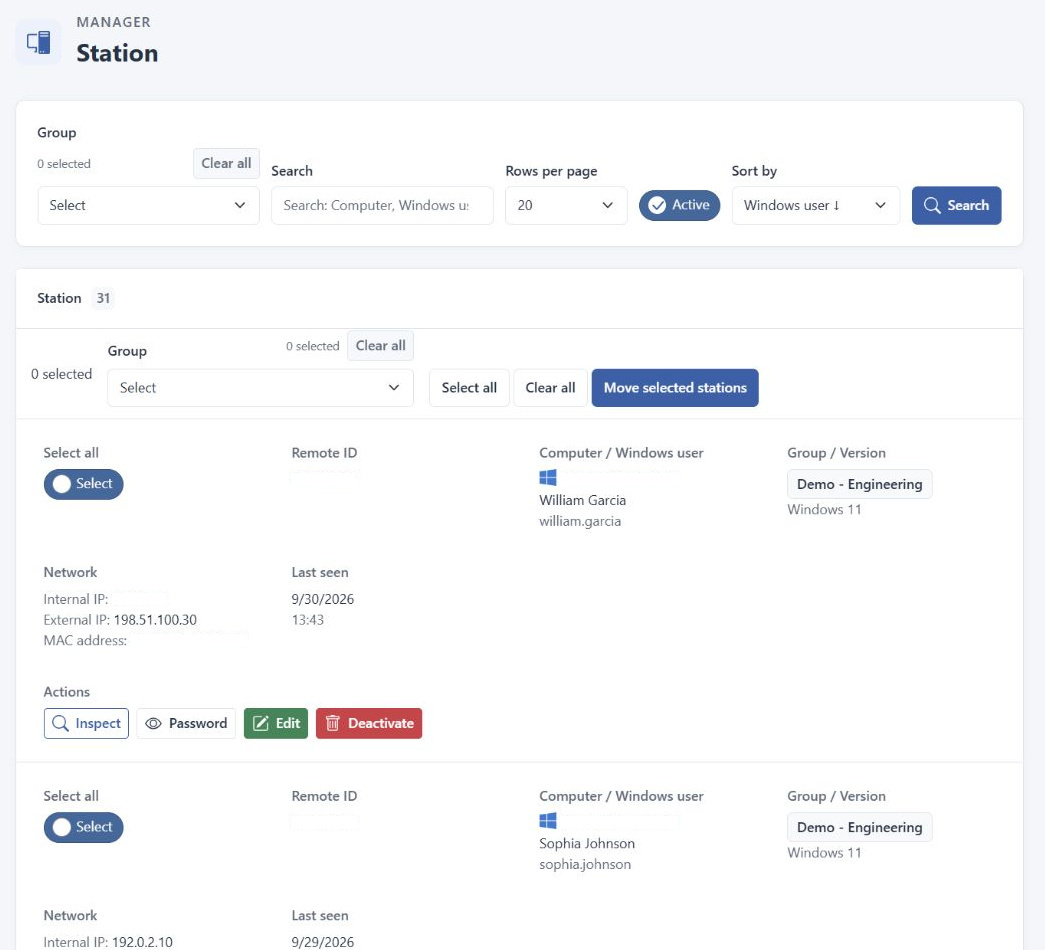
A computer name is convenient, but it should not be the only basis for deciding which device a record represents. Names can be reused after replacement, changed during maintenance, or confused with similar names in another department. DeskGate station information can provide computer and Windows user details together with group, version, network, and last-seen information. Read these fields as a combination rather than treating one recognizable label as conclusive identification.
Network addresses also need context. A device may connect through different networks over time, and an address can describe a current connection rather than a permanent asset identity. The inventory view includes IP and MAC information among its available details, but the organization's assignment records still matter when confirming the physical or operational device. Match the relevant information to the period of the investigation, especially when reviewing a record from before a recent maintenance event.
When two entries appear to describe the same computer, investigate before deactivating or changing either entry. Check when the computer was replaced, reinstalled, renamed, or reassigned. Ask the responsible technical owner which record is expected to represent the current installation. A duplicate-looking name may have a legitimate historical explanation. Resolving the relationship first prevents a cleanup operation from affecting the working record while leaving the outdated one untouched.
Use the station list as an operational starting point
The DeskGate station list includes group selection, search, active-status filtering, page-size controls, and sorting. Begin each investigation by reading the selected filters. A computer absent from the first visible page may be elsewhere in the result set or excluded by the current selection. A narrow filter is useful when the scope is understood, but it can also conceal a device that was assigned to an unexpected group during deployment.
Search for the intended computer, then verify the user and group before opening available actions. The interface can provide actions for inspecting, editing, changing a password, or deactivating a station, depending on the deployed interface and permissions. Reading a record and changing its state are different operations. If the task is only to confirm a device assignment, there is no reason to perform a state-changing action as part of that check.
Use page size and sorting to make the review manageable without confusing presentation with coverage. Seeing a small number of rows does not establish that only that many computers exist in the group. Similarly, sorting by a familiar field can change where a computer appears without changing its status. When handing a finding to another team, include the group and search context needed to reproduce the view, rather than sending only a cropped row without its scope.
Design groups around a clear management purpose
A group structure should reflect a specific operational need. It might divide computers by responsible team, office location, or another understood management boundary. Avoid letting the same group label mean different things to different reviewers. If support staff interpret a group as a physical site while managers interpret it as an organizational department, a report can appear correct while covering a different set of devices from the one the reviewer expects.
DeskGate provides group selection and the ability to move selected stations in the appropriate interface. Before a group change, verify both the selected computers and the destination. A bulk operation magnifies a mistaken selection. Afterward, inspect the destination group and confirm that the intended computers are present with the expected user information. Keep the change associated with the business event that required it, such as an office move or a reassignment of operational responsibility.
Check historical reporting behavior separately from the current station view. Do not assume that moving a device today makes every earlier period appear under the same organizational arrangement. When a review crosses the change date, explain the old and new scope. This is especially important when comparing totals between departments. A group that gained several computers may show more recorded activity because its membership expanded, even when the underlying work pattern on each computer stayed similar.
Validate installation with a recognizable work interval
An installation is not fully validated just because a device name appears on a screen. Confirm that the computer belongs to the expected group, that its user association is understood, and that the selected reporting period contains recognizable activity. Choose a simple interval involving known applications. This creates a practical connection between the endpoint, the management view, and the report a manager or support technician will actually use.
Test representative conditions before expanding the deployment. Assigned laptops, shared workstations, and occasionally connected computers may reveal different assumptions about availability and identity. The pilot does not need to prove every possible future scenario, but it should cover the major device arrangements already known to the organization. Document what was checked and what remains outside the pilot so that the result is not mistaken for a guarantee about untested devices or working conditions.
Use the supplied DeskGate deployment instructions for the installed package when checking client and server configuration. Do not assume that another environment's settings apply unchanged. If a computer appears but expected records are missing, investigate the relevant connection, collection, date, and access conditions. Preserve the distinction between a device being listed and a complete reporting path being verified. These are separate checkpoints in a dependable rollout.
Interpret last-seen information carefully
Last-seen information helps identify records that may need attention. By itself, it does not prove that a computer is currently reachable, powered on, or available for a particular operation. The computer could have disconnected after its last contact. Likewise, an older last-seen value does not establish that the computer has been retired. The device may be used only occasionally, its connection may have changed, or a technical issue may be preventing recent contact.
Set review expectations according to the device's role. A computer used for daily service work may warrant investigation sooner than an emergency spare kept for occasional use. Keep these expectations in the organization's operating process rather than assuming every device should share one threshold. The purpose is to identify meaningful exceptions, not to generate a long list of normal conditions that reviewers eventually stop reading.
When an unexpected value appears, first confirm that the device is still assigned and in use. Then ask the technical owner to examine the relevant connection conditions. Do not interpret a stale computer record as evidence of an employee's absence or lack of work. A technical timestamp describes communication within its own context. Its explanation may involve a replacement computer, a planned absence, a different workflow, or a maintenance issue that has nothing to do with the person's performance.
Read inventory as a view of recorded device information
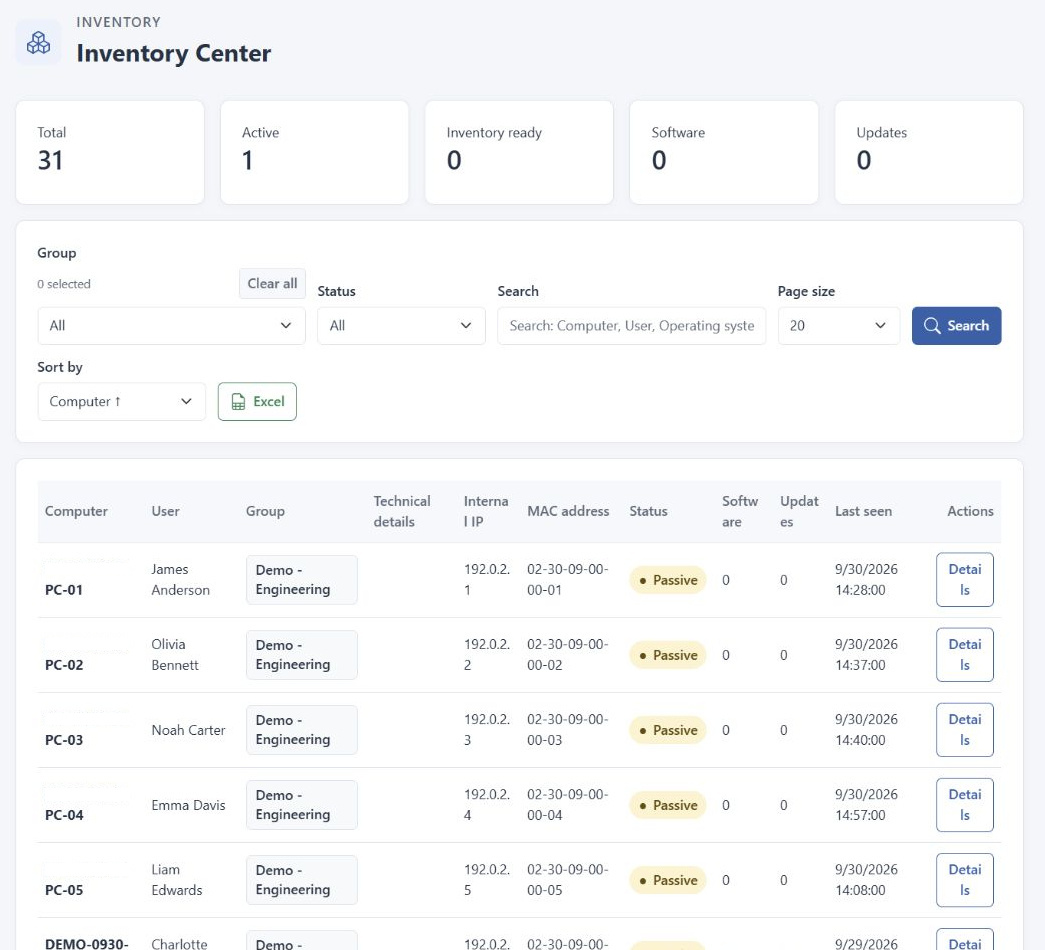
DeskGate Inventory Center provides a broader technical view of the monitored computers. The interface includes totals and status indicators such as active computers, inventory readiness, software, and updates. Group, status, search, and sorting controls help narrow the list. Available columns can include the computer, user, group, technical details, IP and MAC information, software, updates, and last-seen information. Begin by checking which devices the selected filters include.
Open the relevant details when investigating an individual computer. A high-level count can indicate where to look, but it does not explain every technical difference across the fleet. Compare the recorded information with the organization's assignment and maintenance context. If an expected detail is absent, check the record's freshness and coverage before deciding that the underlying hardware or software is absent. A management view is only as informative as the data available for the selected device and period.
Inventory visibility should not be confused with an unrelated administrative capability. For example, the presence of update information does not by itself establish that the interface automatically deploys every software update. Use the product documentation for the actual action required. Keeping observation separate from remediation helps support staff choose the correct next step and prevents a report from being treated as proof that maintenance work has already been completed.
Connect usage reports to the correct device context
Once the device scope is established, use activity reports to answer the relevant workplace question. DeskGate Work Analysis provides group, user, and date controls for examining application and web usage. Confirm those selections before reading the result. If a person uses more than one computer or a device is shared, determine how the records being reviewed relate to that arrangement. A single visible account or device does not automatically represent all work performed by one person.
Choose a period that fits the event being investigated. For a newly assigned computer, start after the confirmed assignment and installation checks. For a support issue, use the interval around the reported problem rather than an unrelated weekly total. If the purpose is a comparison before and after a change, document the date and the affected devices. This makes it easier to separate a real usage difference from a difference in coverage or group membership.
Use activity measures for what they describe. The Daily Activity report uses a full day of 1,440 minutes and does not report computer power-on or power-off times. Idle time cannot be converted directly into absence, downtime, or lost work. A computer can also be associated with valuable tasks that involve little interaction, such as calls or document review. Device context improves interpretation, but it does not turn a technical measurement into a complete account of an employee's contribution.
Manage shared computers and changing users explicitly
Shared workstations require additional care because device ownership and task responsibility may differ during the day. Establish who uses the computer, how the Windows user information relates to those people, and which periods need review. Where a shared account prevents a reliable individual association, do not present the record as if it uniquely identifies a particular employee. The appropriate conclusion may concern the workstation or the workflow rather than a person.
Shift changes can affect the time window as well as the identity question. A report spanning a full day may include several operational periods with different responsibilities. Review the relevant dates and working arrangements before comparing one workstation with another. If one computer supports several roles while another supports one task, a simple comparison of total activity is unlikely to explain the difference fairly. The review needs a clear description of what each computer is used for.
Employee transfers and temporary assignments deserve the same attention. Record when the arrangement changed and check the group and user relationships in the management environment. These records can remain in the organization's existing administrative process; do not assume DeskGate automatically receives every personnel change. A short, reliable handover between the people managing devices and the people managing assignments can prevent repeated confusion in later activity reviews.
Treat replacements and reinstallations as lifecycle events
A replacement computer should pass through the same identity and reporting checks as the initial rollout. Confirm its group, user association, installed version, and recognizable reporting interval. If the old computer remains listed, establish whether it is retained, reassigned, or ready for an approved retirement action. Reusing the old computer name does not remove the need to distinguish the two device histories.
Reinstallation can also change the relationship between the current device and an earlier record. Before modifying older entries, consult the installation history and the person responsible for the work. Avoid assuming that a similar name proves continuity or that an apparently older entry is safe to discard. Historical records may still be relevant to an authorized review, while current reporting must clearly identify the active installation. Both concerns should be handled through the organization's retention and device management process.
After a lifecycle change, repeat a small reporting check instead of relying only on the deployment action's success message. Confirm the new state in the station list, inspect relevant inventory details, and verify expected usage records for an understood interval. Document unresolved differences with an owner and follow-up date. This keeps routine maintenance from silently creating gaps that are discovered much later when somebody needs a reliable report.
Investigate missing information in a consistent order
When a computer or report appears to be missing, begin with the simplest scope checks. Confirm the correct group, status filter, search text, page, user selection, and date range. A narrow view can exclude the expected result without any collection failure. If the record appears after correcting a filter, capture the actual cause in the support explanation so that the same misunderstanding does not repeatedly become a technical incident.
Next, verify the device assignment and recent changes. A renamed computer, replacement installation, transferred user, or moved group can make a familiar search ineffective. Compare the record with the organization's operational history and inspect available last-seen and version information. Only then move to the relevant connection or collection investigation. This order prevents unnecessary configuration changes when the real problem is that the reviewer is looking for the right computer under the wrong identity.
Keep the investigation separate from actions that alter the environment. Editing, moving, or deactivating a station should have a clear purpose and a verified target. If the available evidence is incomplete, record the uncertainty rather than forcing the device into an assumed state. A reliable support process should be able to explain what was observed, what was checked, and why the next action follows from the evidence.
Make fleet reviews repeatable and useful
A periodic fleet review should focus on changes and unresolved exceptions. Check newly added computers, unexpected stale records, assignment discrepancies, and devices awaiting retirement decisions. Use inventory and station views together where appropriate, and reconcile findings with the organization's own records. DeskGate's inventory interface includes Excel output; before sharing an export, verify its selected scope and handle the resulting file according to the organization's access practices.
Define who resolves each type of exception. Technical staff may handle connection issues, an asset owner may confirm a replacement, and a team manager may explain a temporary assignment. Assigning the right person avoids repeatedly circulating a report without reaching a decision. Review the previous period's open items before adding new ones so that the process tracks progress instead of merely producing a fresh list of the same uncertainties.
Employee computer monitoring software works best when its device information remains connected to real operational events. A maintained identity map, clear group purpose, verified installation path, and repeatable review process make activity reports easier to trust. Use DeskGate to inspect the relevant computer and reporting information, then connect that evidence with the people and processes responsible for the fleet. This turns computer monitoring into a practical support for reliable daily operations.