DeskGate Help Center
DeskGate Screen Monitoring Software for Employees
Understand DeskGate screen monitoring: distinguish recorded sessions from live access, find relevant recordings, and manage review scope.
Screen monitoring software for employees helps an organization examine what appeared on a work computer during a relevant activity. A visual record can clarify a confusing application error, explain the sequence before an interrupted task, or support a focused review of a business process. Its value depends on the question being investigated. Opening a screen without a defined purpose creates more information to interpret, while a carefully scoped review connects a specific observation to a specific operational decision.
DeskGate provides screen recording review alongside computer management and usage reporting. These sources describe different aspects of work and should be used accordingly. A recording shows the visual information captured under the applicable conditions; an application report describes recorded usage; a support session examines the computer at the time of connection. This guide explains how to choose between them, find the correct records, assess what they establish, and keep the review process understandable for the people involved.
Start with the operational question
Before looking for images, describe the event in ordinary language. Identify the task someone was attempting, the application involved, the result they expected, and the result they actually observed. A request such as investigating a failed submission gives the reviewer a useful starting point. A request to watch an entire employee day does not explain which decision the organization needs to make or how the reviewer will know when enough information has been collected.
Record the approximate event time and the relevant computer or user. If the time is uncertain, preserve that uncertainty instead of replacing it with a precise timestamp. Ask whether the event happened once or has been repeated. These details help determine whether a historical recording, a current support session, or a usage report is the most suitable source. They also prevent a broad search from becoming the default response to a narrowly defined technical problem.
Separate live viewing from recorded history
A live session concerns the current state of the computer. It can help a support operator understand an issue that is happening now or observe a controlled attempt to reproduce it. However, the current screen is not a record of yesterday's event. An application may have been restarted, a document may have changed, or the user may have moved to another device. Those differences matter when assessing whether the same problem has actually been reproduced.
Historical screen recordings serve a different purpose. They allow an authorized reviewer to inspect available visual records from a previous period. Their availability depends on the recording conditions that applied at that time and on whether the relevant files remain accessible. Enabling a recording option today cannot reconstruct a screen that was never captured yesterday. Keep current observation and historical evidence separate in the resulting support notes so that a later reader can tell exactly what was examined.
Establish the recording scope before relying on it
An organization should define which work computers and users fall within its screen recording process. That scope should reflect an operational purpose and the responsibilities of the people who administer it. Explain the intended use, the types of information involved, and the review arrangements through the organization's appropriate employee communication process. A clear explanation is more useful than leaving employees and managers to infer the scope from the presence of a software client.
Before making a historical search, verify that the relevant computer was included during the event period. A device added later may appear in current management views without having the earlier recordings being sought. A policy change may also affect what is available across two dates. Treat those boundaries as part of the record. They explain the information that can reasonably be expected and prevent missing history from being interpreted as a statement about the employee's behavior.
Confirm the computer and user relationship
The correct employee name is only one part of a reliable search. People may use replacement laptops, shared workstations, or temporary computers during maintenance. A computer name may remain familiar even though the device has moved to another team. Review the relationship between the user, the computer, and the event date before interpreting an image as belonging to a particular person's task. Current assignments should not automatically be projected backward onto older records.
DeskGate's computer list provides a starting point for checking device and user context, including groups and last-seen information. Use the relevant management information to resolve a mistaken selection before expanding the recording search. If a shared account prevents a dependable personal attribution, document that limitation. The existence of a visual record does not remove uncertainty about who performed an action. Accurate identification is a prerequisite for a meaningful review, rather than a detail to settle after drawing conclusions.
Use the recording filters deliberately
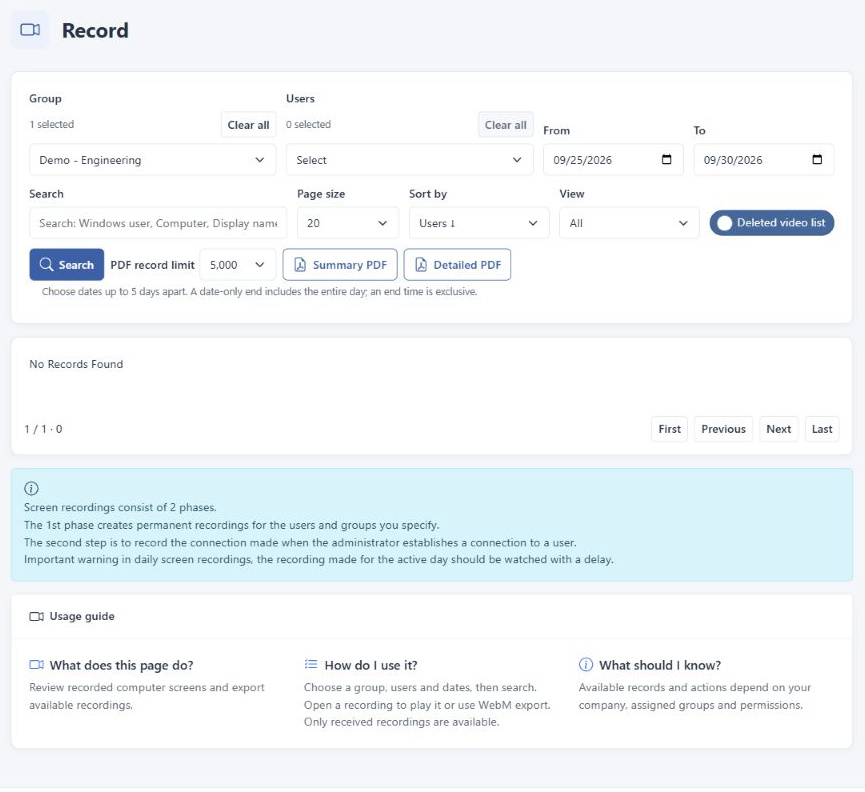
The DeskGate recording view includes group, user, and date selections, together with search and list controls. Begin with the smallest reasonable scope that matches the event. Confirm the selected group and user before changing the dates, especially when moving between separate support cases. A list that appears empty may reflect a filter left over from a previous search. Checking those selections is usually more informative than immediately assuming that the recording system failed.
Use sorting and page size controls to navigate the resulting list, while remembering that the current page is only part of the available result set. A search term can narrow the view further, but it should correspond to information the list actually exposes. Once a likely record is found, verify its displayed context before opening it. Preserve the search scope in the case notes so another authorized reviewer can repeat the same investigation without guessing how the record was located.
Check dates and time interpretation
An employee's description of an event and the time shown in an administrative interface may use different reference points. This is particularly relevant when users and reviewers work in different regions or when an incident occurs close to midnight. Confirm how the installed environment presents dates and times before concluding that an expected record is missing. Do not assume that every view automatically converts every timestamp into the same local time convention.
Write explicit dates in the review notes rather than expressions such as yesterday or last Friday. Where the organization uses a documented time reference, include it with the event window. If the first search does not identify the event, check the adjacent period only after verifying the user and device. This is a controlled adjustment to an uncertain time estimate, not a reason to examine unrelated days. A consistent time reference makes comparisons between reports and recordings much easier to interpret.
Review only the sequence needed to answer the question
When a recording opens, first confirm that it shows the expected application or work context. Then locate the sequence around the reported event. A visible message may explain why a task stopped, but the preceding steps often matter as well. Observe enough of the sequence to understand the relationship between the action and the result. Avoid extracting a single frame that omits the immediately preceding condition needed to interpret it correctly.
Distinguish direct observation from explanation. A reviewer may observe that a dialog appeared after a user selected a command. The recording alone may not establish whether the underlying cause was an application defect, a server response, a permission setting, or a network interruption. Record the visible sequence accurately and use the appropriate technical sources to investigate the cause. This approach makes visual review useful to support teams without overstating what the image can prove about the entire system.
Understand what screen images cannot measure
A visible application window does not establish that a person actively used it for every moment it remained on screen. Reading, discussion, analysis, and waiting for a business response may occur with little visible change. Conversely, frequent changes on screen do not establish that the resulting work met its requirements. Screen monitoring software for employees should therefore not be treated as a complete measure of effort, task quality, or the value of an individual's contribution.
Use the image for the question it can answer, such as which message appeared or which stage of a process was visible. Evaluate completed work through the organization's normal operational records and discussion with the responsible people. When a review concerns performance, the visual evidence should be interpreted within that wider context. Keeping these distinctions explicit helps managers avoid converting a technical observation into a broad personal judgment that the underlying information does not support.
Connect recordings with application usage reports
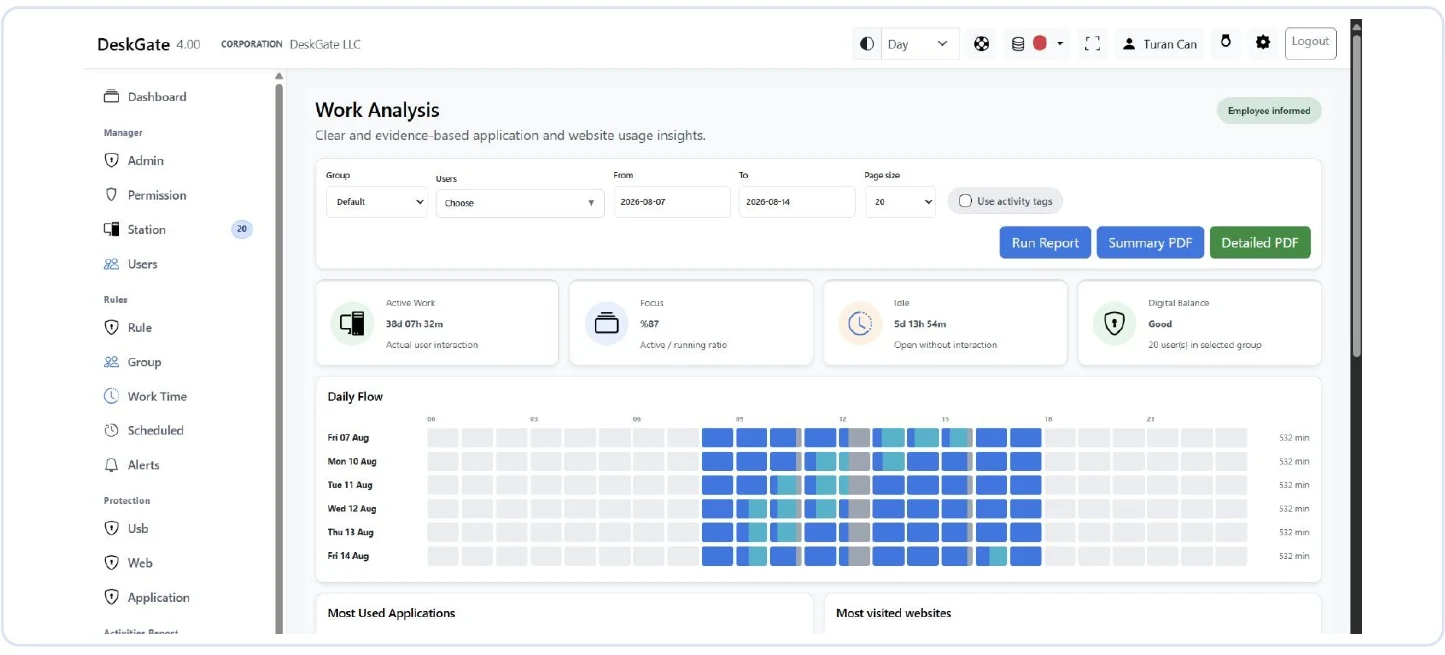
DeskGate Work Analysis provides group, user, and date filters for examining application and web usage. It can help identify which tools were represented in a period or narrow a question before a visual review is considered. Select a matching user and date range when comparing it with a recording. Differences in scope can otherwise make two valid sources appear inconsistent, particularly if one report covers an entire day and the recording concerns only a brief event.
The Daily Activity report covers all 1,440 minutes of a day and does not contain computer power-on and power-off information. Its active and idle figures should not be read as a complete attendance calculation. A recording also does not turn those figures into an attendance record. Explain each source separately and then describe how they inform the specific question. The strongest review is one in which the meaning and limits of every included measurement remain visible to the reader.
Investigate missing or inaccessible recordings carefully
An empty list can have several explanations, including the selected scope, the recording conditions during the period, or the availability of the stored files. Start by confirming the filters and the event details. Next, check the relevant device and the policy that applied at the time. A current connection confirms something about the device now; it does not by itself establish that all earlier recording data was captured and received successfully.
If a record appears in a list but cannot be opened, distinguish the existence of its listing from the availability of its content. The interface includes a deleted video list, but the presence of that view should not be treated as a promise that every removed file can be recovered. Ask the responsible administrator to investigate the actual storage and access condition. State any unresolved gap explicitly. Missing visual information is not proof that the employee did no work during the corresponding period.
Define reviewer access and responsibilities
Review responsibilities should be associated with a real operational role. A support operator investigating an application error may need a different scope from a manager examining an agreed business process. DeskGate recording access depends on the relevant company, group, and permission context. Verify that the reviewer has the appropriate authorized scope instead of using a broader account simply because it makes every computer easier to find in one place.
Access arrangements need attention when people move between teams or take on temporary responsibilities. Keep the organization's assignment records and the intended review scope aligned. A completed investigation should not become an informal reason for unlimited future access. Explain who owns the review, who can receive the findings, and who handles questions about the information. These responsibilities give the technical permissions an operational meaning and reduce ambiguity when a recording contains information outside the immediate support question.
Treat retention and storage as operational decisions
Recorded screen content requires a storage and retention plan appropriate to the organization's purpose. Decide how long information is needed, who manages the storage, and how availability will be checked. Avoid promising an indefinite visual history merely because a recording feature exists. Actual availability depends on the configured environment and the lifecycle of the files. A useful retention discussion connects the intended review period with the capacity and procedures needed to support it.
Review the behavior of the installed version and the chosen settings before describing any deletion or retention process as automatic. If the organization relies on a manual procedure, identify its owner and verification step. Where backup is part of the plan, verify the relevant restore process rather than assuming that a backup job guarantees every record can be opened. The purpose is dependable access to necessary information, with known boundaries, rather than collecting more footage without a plan for its use.
Share findings without broadening the investigation
The most useful support outcome is often a concise description of the observed sequence and the resulting technical action. It may not require distributing the full recording. Identify what the recipient needs to understand and use the organization's approved sharing process. Images can include business documents, communications, and other details unrelated to the original question. Those details should not become additional review subjects merely because they were visible during a valid investigation.
When a record must be referenced, include the relevant user or device scope, date window, and the observation being supported. Keep the distinction between an image, a usage report, and a written explanation clear. Work Analysis PDF options concern report output; they should not be described as a way to export a video. Before sending any report, confirm its filters and record limits. The recipient should be able to understand the evidence without receiving an unnecessarily broad collection of employee information.
Build a repeatable support review
A repeatable process starts with the reported event, confirms identity and time, selects the appropriate source, and records the observation. It then identifies the next technical check and the person responsible for it. If a change is made to address the issue, verify the result under the relevant conditions. A successful current test may show that the problem is no longer reproducible, while leaving the precise historical cause uncertain. Both findings can be recorded accurately.
Close the review by stating what was resolved and what remains unknown. Include enough context for a later support operator to understand the decision without repeating an unrestricted search. If the same issue returns, the documented scope and observation provide a practical starting point. This disciplined use of screen monitoring software for employees keeps the focus on understanding work-related events and improving the associated process, instead of accumulating images that nobody can confidently interpret or act upon.
Keep an investigation note that separates facts and actions
A short investigation note should distinguish the reported symptom, the observed screen sequence, the technical explanation being considered, and the action taken. Those are separate stages of understanding. When they are compressed into one sentence, a tentative explanation can later be mistaken for a verified cause. Include the relevant search scope and describe any part of the event that could not be inspected. This gives the next reviewer a reliable starting point without requiring unrelated recordings.
Record follow-up checks in the same practical way. State which condition needs to be verified, who is responsible for checking it, and what observation would answer the question. If the application behaves differently during a later session, preserve that difference in the notes instead of rewriting the historical observation. A clear investigation record makes the value of screen monitoring concrete: it helps the organization move from a reported problem to a justified technical action with an understandable chain of evidence.
Validate the workflow before extending its use
Use a small, authorized group to verify the complete review process in the organization's environment. Confirm that the intended computer and user are represented, that the selected dates return the expected available records, and that an authorized reviewer can open a relevant item. Check the behavior under the actual access arrangements rather than testing only with the broadest administrative account. This reveals whether the operational workflow works for the people who will use it routinely.
The review should also establish what happens when the search returns nothing, when a file is unavailable, or when the reported time is uncertain. These are ordinary situations that need a clear response. Document the practical checks, the responsible contact, and the limits of the conclusion that can be drawn. Once those conditions are understood, DeskGate screen recordings can become a dependable part of focused support and process review, supported by accurate scope, appropriate access, and careful interpretation of the visual record.