Define the question
Begin with a specific operational need and an approved scope.
Review the evidence
Use the relevant report and check its filters and limitations.
Choose the follow-up
Confirm context before deciding what action is appropriate.
How to use these examples
These are illustrative workflows, not customer case studies. They show how an authorized team can use DeskGate screens to investigate a question. They do not claim measured savings, improved productivity or a successful deployment at a named company.
Choose a reviewer, device or group and a bounded period. Record the expected result before opening a report. A collected activity signal needs context; it is not a standalone assessment of an employee.
Scenario 1: understand an application-usage pattern
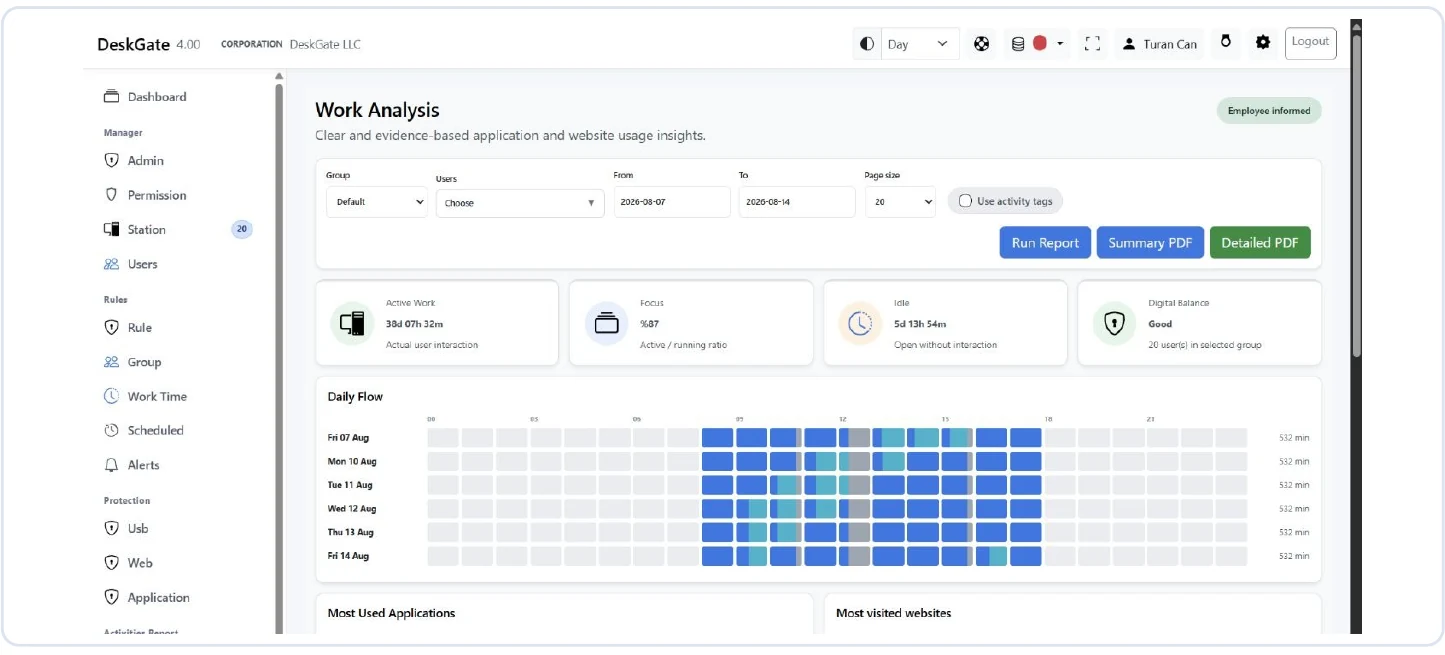 Actual DeskGate interface with demonstration data. The example values are not customer results or deployment benchmarks. Open the image at its original size.
Question: a team reports repeated interruptions while using a business application. An authorized reviewer wants to understand when the pattern occurs.
- Open Work Analysis for the relevant group and users.
- Select the agreed period and review application and website records alongside active and idle patterns.
- Check whether classifications and collection coverage fit the question. Undefined activity is not automatically unproductive activity.
- Ask the responsible team whether meetings, application waits or offline work explain the intervals.
Follow-up: document the observed pattern and investigate the application or workflow. Device activity alone does not prove the cause of a delay. Use the Work Analysis walkthrough for filters and export instructions.
Scenario 2: review a management trend
Question: a manager wants to understand a change in the selected team's recorded activity between periods.
Start with Management Summary. Confirm the people, period boundaries and classification settings before comparing totals. If the previous period has no data, label the baseline as unavailable; do not report an improvement against an empty baseline.
Follow-up: ask a focused operational question, such as whether a schedule or workflow changed. Match the finding to attendance, assigned duties and other appropriate context. The report does not measure workload or work quality by itself. Follow the Management Summary guide before sharing a summary.
Scenario 3: investigate a support-session discrepancy
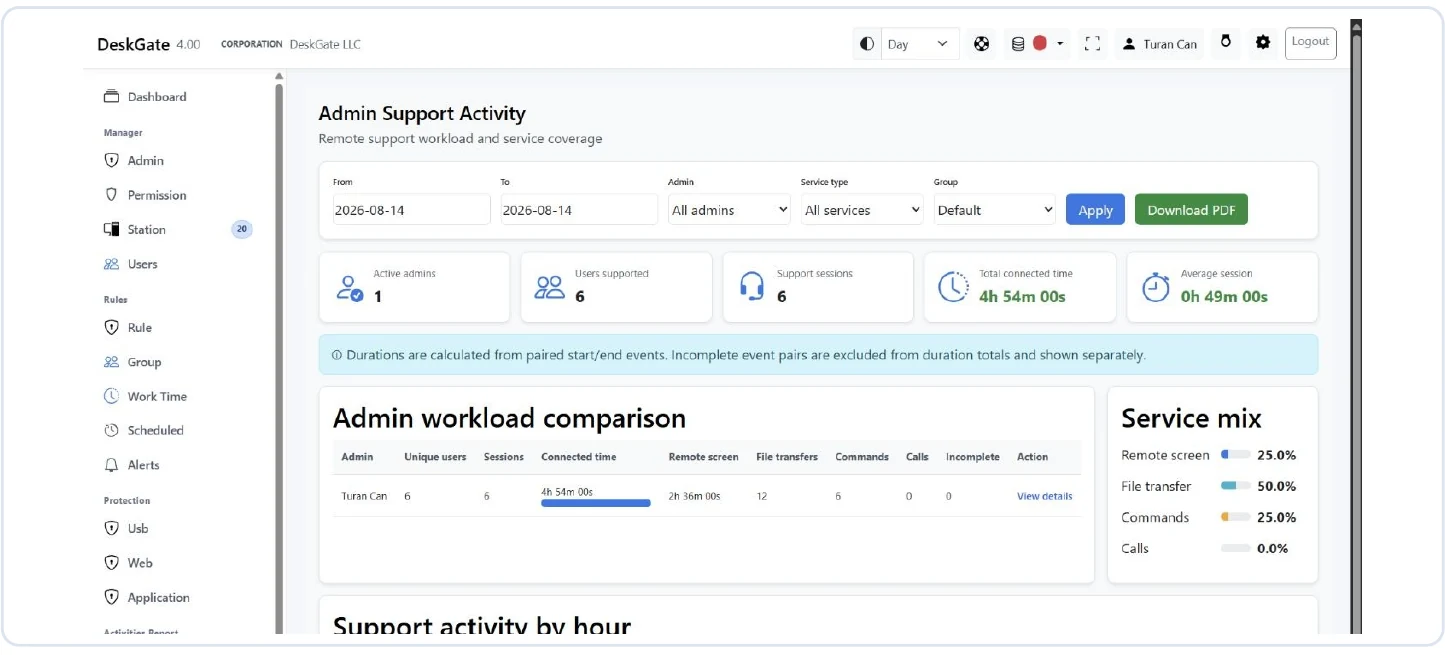 Actual DeskGate interface with demonstration data. The example values are not customer results or deployment benchmarks. Open the image at its original size.
Question: a technician remembers supporting a device, but a review shows an incomplete session or unexpected connected time.
- Open Admin Support Activity and match the administrator, service type, group and period.
- Inspect the relevant session and compare the recorded source, destination, start and end.
- Check incomplete events separately. Missing end events are not proof of a completed session with zero duration.
- Compare with the authorized support request and record the discrepancy.
Follow-up: investigate the recording or connection issue. Connected time is not ticket-resolution time, and session count is not a quality score. See the Support Activity guide.
Scenario 4: validate access before sharing reports
Question: a team lead should review one group's reports without seeing unrelated teams.
Use one reviewer and one pilot group. Check page permission and group coverage separately, then sign in as that reviewer to verify both permitted access and restrictions. Confirm the export contains only the intended scope before sharing it.
Follow-up: adjust the identified permission or group assignment through the authorized administrator. Avoid granting unrestricted access just to resolve a missing report. Use Administrator Permissions and Group Rules.