Ask one question
State what you need to understand and who may review it.
Choose the report
Match the report to the event or summary you need.
Validate the scope
Check people, dates, collection and export limits.
Start with the question, not the largest export
Different DeskGate reports answer different questions. Pick a report family first, then narrow its group, users and date range. A result in one report is not automatically equivalent to a similarly named total in another.
Keep the initial review small. Inspect one known record before expanding the period or exporting details. The choices below refer to the report interfaces shown in the current documentation; available controls depend on your release and permissions.
Which report should I open?
Which applications or websites were used?
Open Work Analysis. Review recorded usage, classification and active/idle context for the selected people and period.
Open Work Analysis instructionsWhat daily active and passive time was recorded?
Open Activities. Read its full-day and metric definitions; this is not a PC power-on/power-off history or an attendance certificate.
Open Daily Activity instructionsHow do the selected periods compare?
Start with Management Summary. Confirm a valid baseline, consistent users and comparable collection coverage before interpreting a difference.
Open Management Summary instructionsWhich remote-support sessions were recorded?
Use Admin Support Activity. Review administrator and service filters, session records and incomplete event pairs separately.
Open Support Activity instructions Use detail to explain a summary
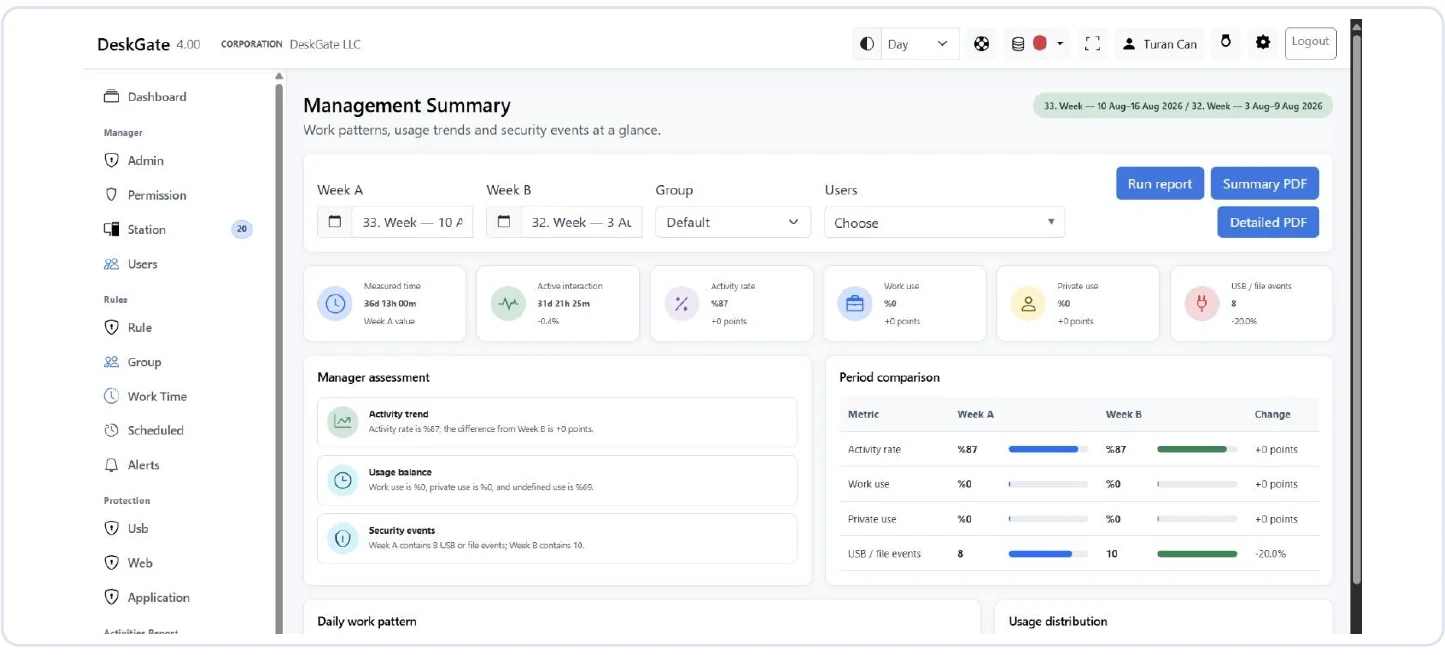 Actual DeskGate interface with demonstration data. The example values are not customer results or deployment benchmarks. Open the image at its original size.
A summary is a starting point. When a total needs explanation, choose the matching detailed report and reproduce the relevant group, users and date boundaries. Check classification settings and record coverage as well as the number displayed.
For example, a period comparison can reveal a change in recorded usage. Work Analysis can then help examine applications or websites within that period. Neither view alone explains intent, output quality or work completed away from a computer.
Explore practical review scenarios for examples of that follow-up.
Validate before exporting or scheduling
- Check the authorized audience and selected people.
- Confirm the report's time boundaries and any available collection data.
- Inspect a known record and check whether a page or PDF record limit applies.
- Use Summary PDF or Detailed PDF only where that report provides it, and inspect the resulting file.
- Configure recurring delivery only after the manual result is correct.
Use Scheduled Reports for recurring delivery and SMTP configuration for the mail settings. A schedule is a delivery mechanism, not a different source of truth.
When no report seems to answer the question
Do not stretch a report beyond its recorded data. If you need an audit event, device inventory or another event family, locate that specific interface and confirm its fields rather than treating an activity total as a substitute.
If an expected record is absent, follow the empty-report checks. If two views disagree after matching their scope, prepare a diagnostic summary with the report names, filters and one reproducible example.