DeskGate practical guide
How to Read Employee Activity Reports
Read DeskGate Work Analysis filters, activity measures and timelines with the context needed for a useful review.
By DeskGate · Published October 5, 2026
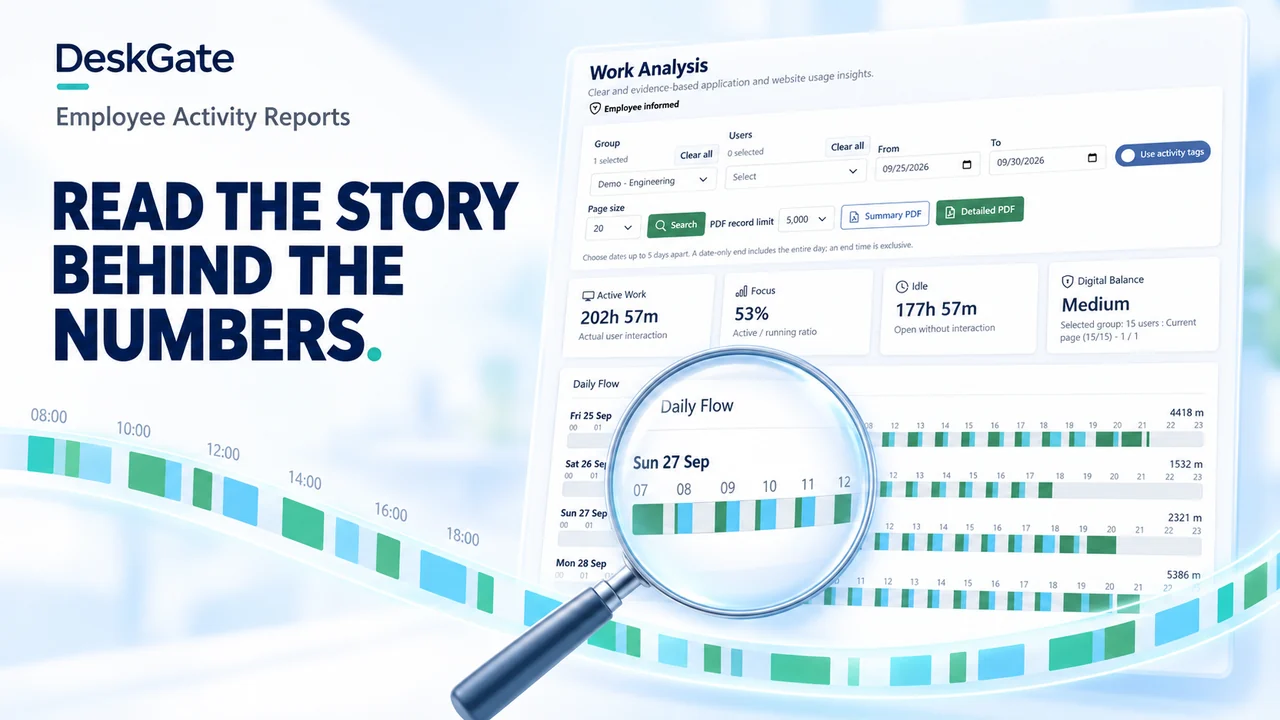 Concept illustration. Original product examples are identified below.
Start with the question and the selected scope
Employee activity reports describe recorded computer activity within a selected scope. To read them usefully, first state the question: are you reviewing application usage, investigating a reported interruption or comparing a team’s recorded activity across periods? Choose a report that answers that question before interpreting its totals.
This walkthrough uses the original DeskGate Work Analysis screen. Its dates and numbers are sample interface data. Controls and labels can vary by product version, so confirm the behavior of the installed build. For the full report catalogue, use the Employee Monitoring Reports Guide.
1. Check group, users and dates
Read the Group and Users filters before the summary cards. A group total and an individual total represent different populations. Confirm which devices contributed records and whether the selected period covers the intended working days.
The pictured screen includes From and To controls, a page-size selector and a PDF record limit. Its guidance states that a date-only end includes the whole day while an end time is exclusive. Check those boundaries and the reporting time zone before comparing a report with a calendar or support event.
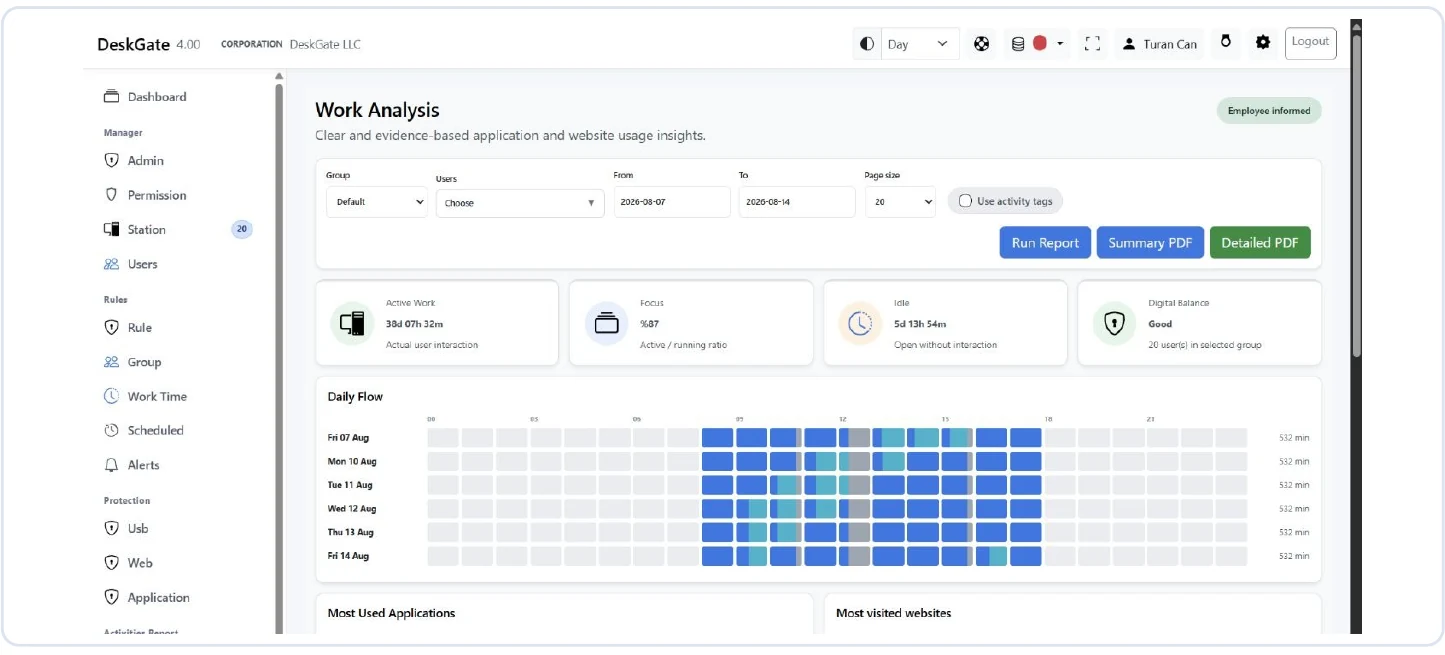 Original DeskGate Work Analysis screen with filters, summary cards and Daily Flow. Open the image for the original view.
2. Read the cards as recorded measures
Interpretation checks for the pictured Work Analysis cards.| Visible measure | What to establish before drawing a conclusion |
|---|
| Active Work | The pictured screen labels this as actual user interaction. Establish the collection rules and selected population. |
|---|
| Focus | The example labels this as an active/running ratio. It is not an independent assessment of work quality. |
|---|
| Idle | The example labels this as open without interaction. Consider meetings, calls, reading, breaks and unattended devices. |
|---|
| Digital Balance | Treat the label as a product-defined summary. Ask how the installed version calculates it before using it in a comparison. |
|---|
Totals spanning several users or devices can exceed the elapsed hours on a single clock. Confirm aggregation rules rather than assuming a large total is a data error. Equally, absence of activity records does not establish that no work took place.
3. Use Daily Flow to locate a question
The Daily Flow rows place recorded activity along a daily timeline. Use a visible change or gap to choose a narrower period for review. Confirm the meaning of colors in the installed application; the campaign illustration above is not a replacement for the report legend.
For example, a gap during a reported application failure may justify checking a support record and asking the user what happened. A meeting at the same time could explain a quiet device without any technical failure. These are illustrative review steps, not customer findings.
4. Compare like-for-like and verify exports
Keep the group, user scope, date length and collection configuration consistent between comparisons. Account for new devices, leave days, partial data and changed responsibilities. Inspect detailed records before summarizing an apparent trend.
Use Summary PDF or Detailed PDF according to the review purpose, where available. Check the selected PDF limit and exported scope; a visible page or export limit may differ from the entire dataset. Restrict distribution to the people authorized to review it.
5. Record context and the next action
A useful review note includes the question, filters, observation, context and follow-up owner. Keep observation separate from interpretation: “no interaction recorded in this interval” is narrower than “the person was not working.” Avoid turning a single metric into a performance conclusion.
Does idle time mean unproductive time?
No. It describes a device interaction condition under the product’s rules. Work can happen away from the keyboard.
What if a report looks incomplete?
Check scope, time boundaries, endpoint connectivity and collection configuration before escalating. Use the evaluation checklist to document a reproducible example.
Continue your DeskGate evaluation
Request a guided demo