DeskGate solution guide
Employee Monitoring Reports Guide
Read DeskGate activity, management, support and security reports with real screens, practical filters and an evidence-based review workflow.
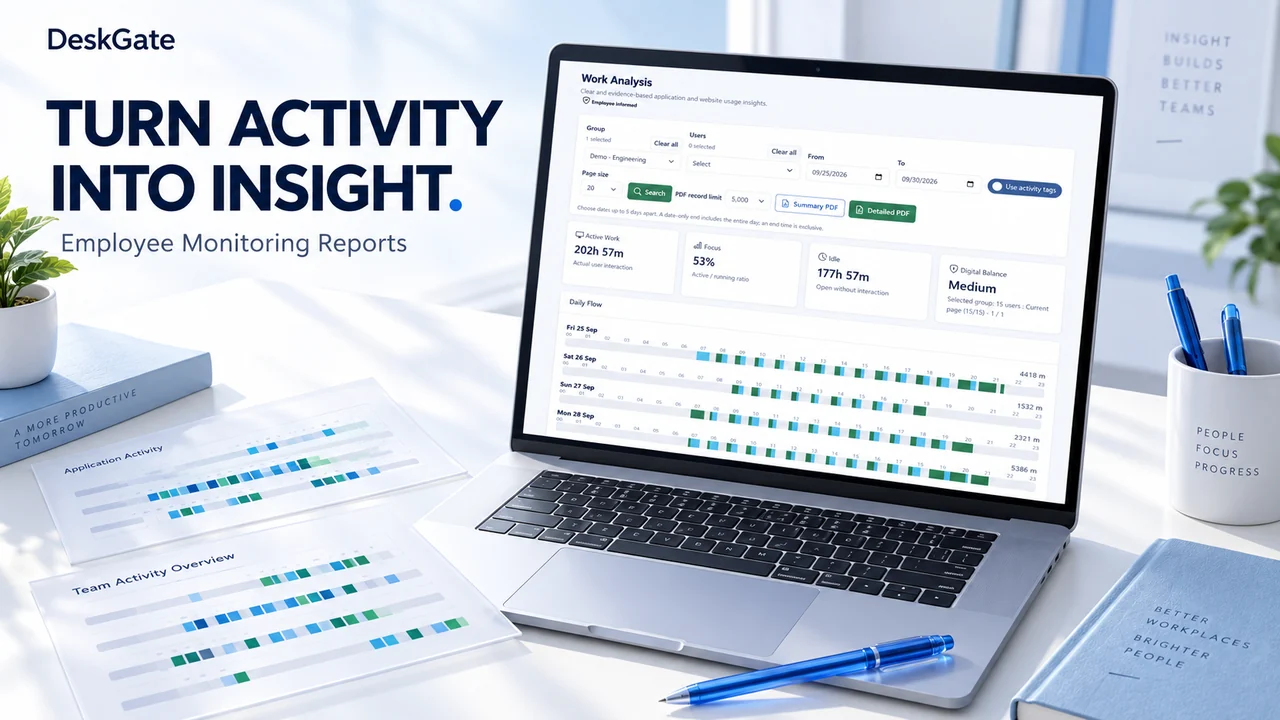 Product illustration. Original interface examples and explanations appear below.
Choose the report that answers your question
A useful employee monitoring report begins with a clear question: which applications were used, what changed between periods, which devices need attention, or what happened during a support session? DeskGate groups these questions into activity, management, support, inventory and security workflows. Feature availability depends on deployment, license and user permissions.
Report families and their review purpose| Report family | What to review |
|---|
| Dashboard and management summary | Start with the central overview, then use management summaries to examine the selected people and reporting periods. Compare like-for-like scopes before interpreting a change. |
|---|
| Activity and work analysis | Review application and website usage, active and idle periods, and the recorded daily flow. Relate activity to work schedules and offline responsibilities. |
|---|
| Combined reports | Use user daily analysis, period summaries and group summaries when a review covers several people or a longer operating period. |
|---|
| Login and connection records | Review the available access and connection history to place a session or endpoint event in context. |
|---|
| USB and file activity | Examine the available removable-media and file events for the approved investigation scope. |
|---|
| Sensitive-file findings | Review sensitive-file scan findings with authorized staff. Confirm what a finding represents before taking action. |
|---|
| Keystroke audit and screen recordings | Use detailed evidence only where the feature is enabled and the review is authorized. These records require particularly careful access and retention decisions. |
|---|
| Support summaries and service history | Review support activity and service records alongside interruptions or technical problems reported by users. |
|---|
| Inventory and asset records | Connect hardware, software, stock and asset assignments to the people and devices in scope. |
|---|
| Security Monitoring, Audit and SIEM | Distinguish source security events, administrative change history and rule-generated alerts. An alert calls for investigation; it is not by itself proof of an attack. |
|---|
| Scheduled reports | Use the available scheduling workflow for recurring reviews and authorized recipients. Confirm the report scope before distributing exports. |
|---|
| Integration records | Where configured and licensed, time and attendance and SIP / PBX records provide additional operational context. |
|---|
Set the scope before interpreting the numbers
Select the relevant group and users, then check the reporting period. Date, week and comparison controls can differ by report and software version. The screenshots below illustrate the supplied product version; use the controls available in your installed build.
- Keep the employee and group scope consistent when comparing periods.
- Check the selected dates, time convention and work schedule before interpreting an interval.
- Use pagination to inspect additional users or records; the first visible page is not the complete result set.
- Distinguish a percentage from a percentage-point change. A change in recorded interaction is not automatically a change in business output.
Read work analysis with the surrounding context
The Work Analysis screen combines recorded active work, focus, idle time and a daily timeline. The visible values describe the selected data and period. They should be considered alongside the person’s role, meetings, calls, reading and other work outside direct computer interaction.
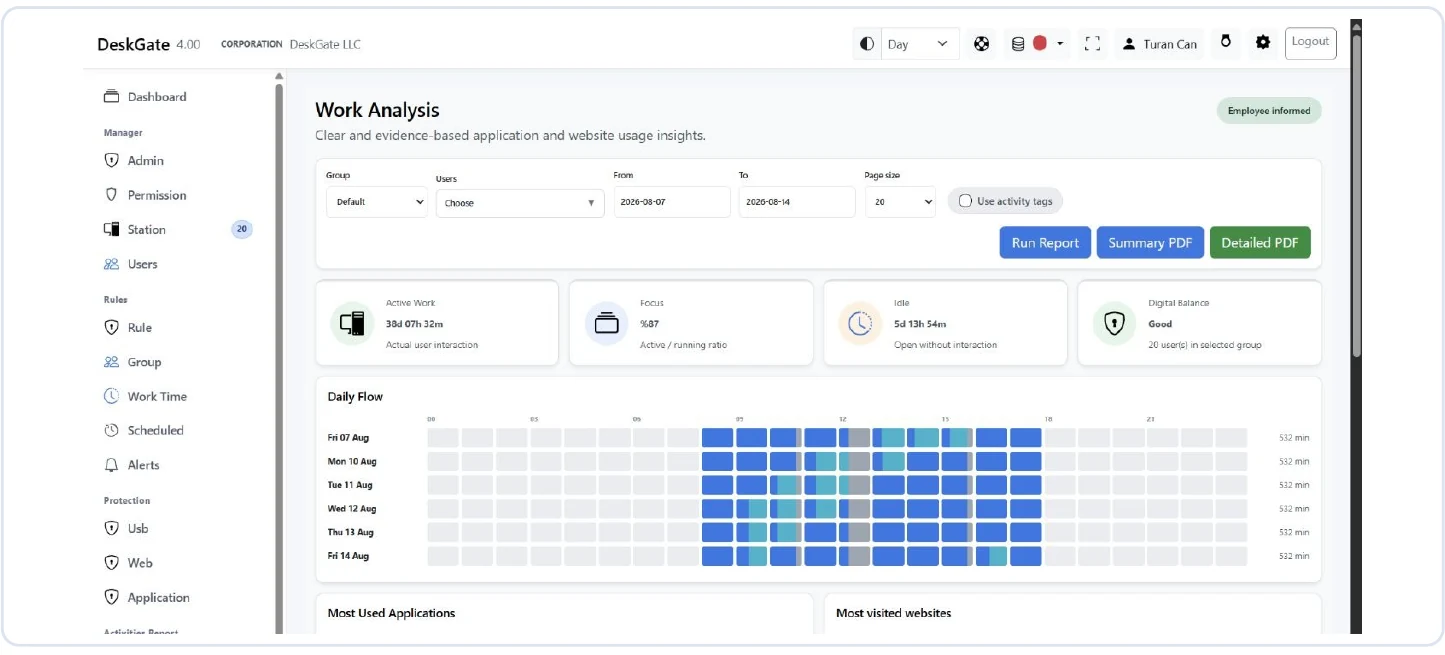 Original DeskGate Work Analysis screen with group, user and period filters. Open the image to inspect the original report.
For example, a manager reviewing an inactive interval can first check the schedule and ask whether the person was in a meeting or dealing with a technical issue. This is an illustrative review process, not a customer result or a productivity benchmark.
Use management summaries for period reviews
Management summaries bring recorded time, activity, usage and security-event context into one review. Use the comparison view to identify a change worth discussing, then inspect the supporting detail before deciding on follow-up.
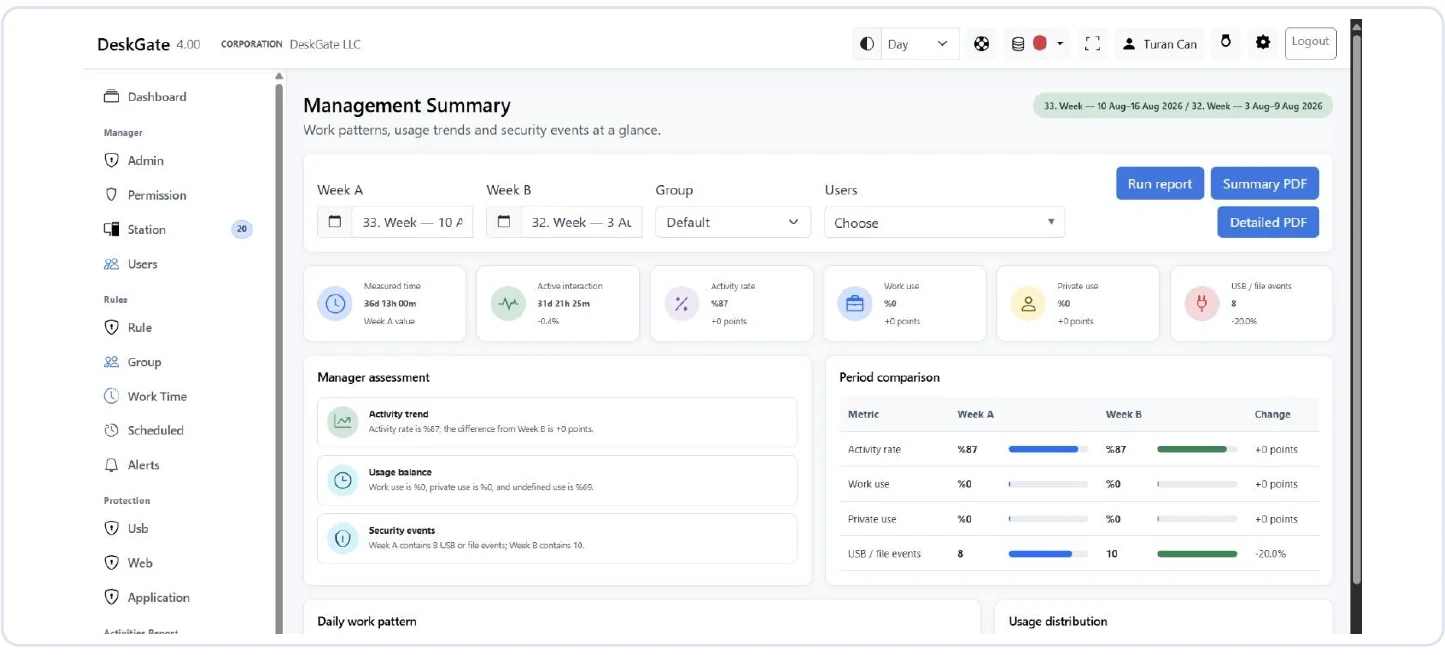 Original DeskGate Management Summary report with period comparison. Open the image to inspect the original report.
A group-level change can reflect a different mix of users, a shorter reporting period or incomplete records. Keep those factors consistent and record the interpretation with the decision.
Choose an export and a responsible recipient
Where offered, Summary PDF and Detailed PDF serve different review needs. Start with the summary for a management discussion and use the detailed export when authorized supporting records are needed. Check the export’s selected scope, record limit and pagination rather than assuming that an export includes unlimited detail.
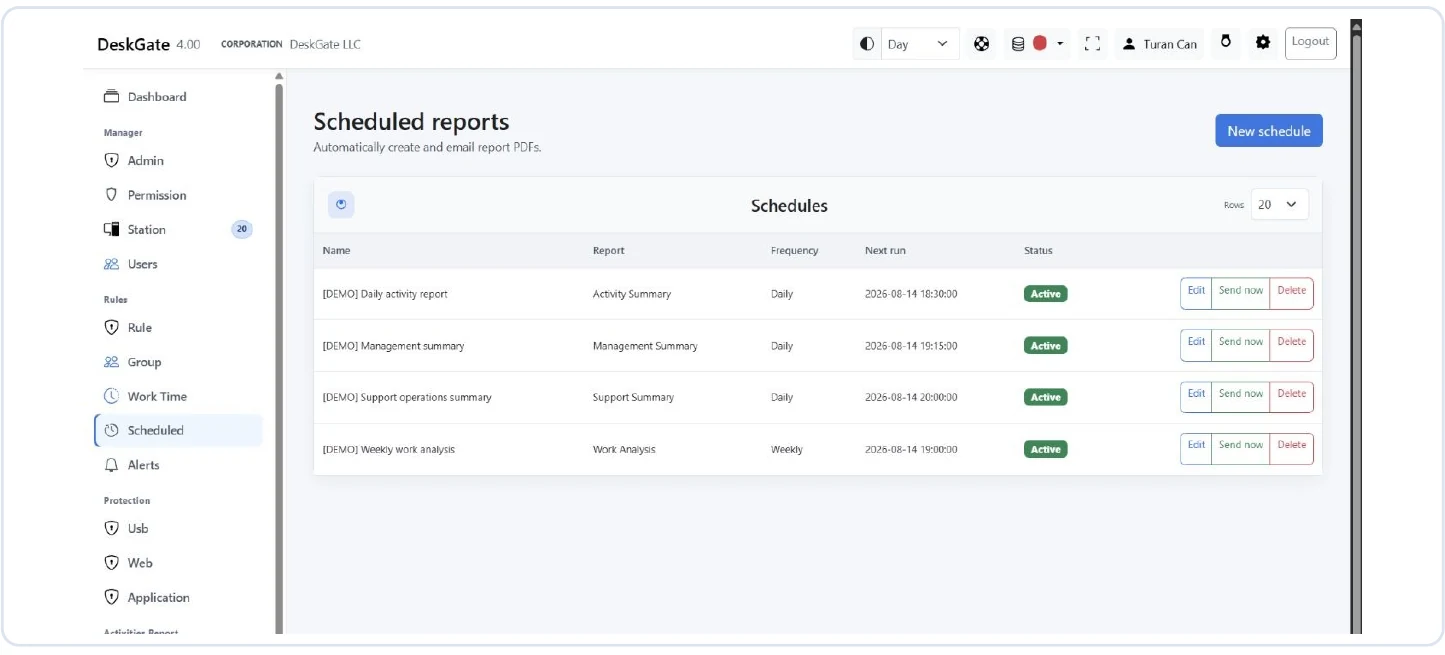 Original DeskGate scheduled-report configuration screen. Open the image to inspect the original report.
Agree on recipients, storage location and retention for exported files. Permissions inside the application do not automatically control a PDF after it has been downloaded or forwarded.
A repeatable reporting workflow
- Define the question and the authorized review scope.
- Choose the report family, people and period.
- Check the summary and inspect relevant detail.
- Confirm context with the responsible team.
- Record the finding, the follow-up owner and the review date.
For a complete platform overview, see all 16 DeskGate categories.
Explore the next part of your evaluation
For step-by-step filtering and PDF export instructions, follow Using the Daily Activity Report.